Distance Map Mode
See the stars in your image in 3D.
Open one solved image and CAst places the Gaia stars in that field at their parallax distances, so you can orbit them, slice through them with your own frame, and look for groups that move together.
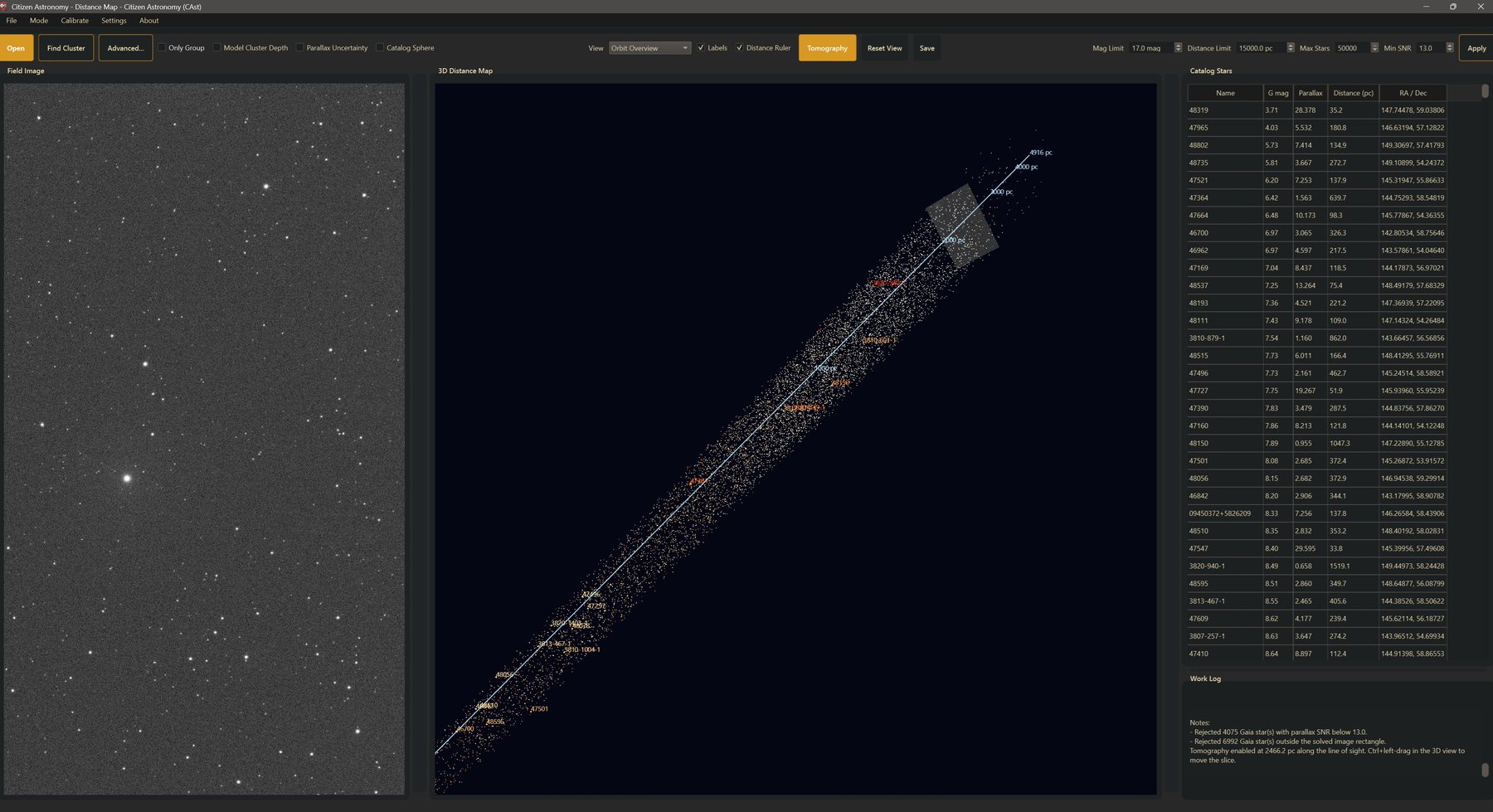
What a distance map is
Every star in your image sits at a different distance.
A photograph flattens the sky onto one plane. The Gaia mission measured parallaxes for more than a billion stars, and a parallax gives a distance. Distance Map uses those measurements to place the stars in your field where they are in space.
And you can explore the depth behind your own image.
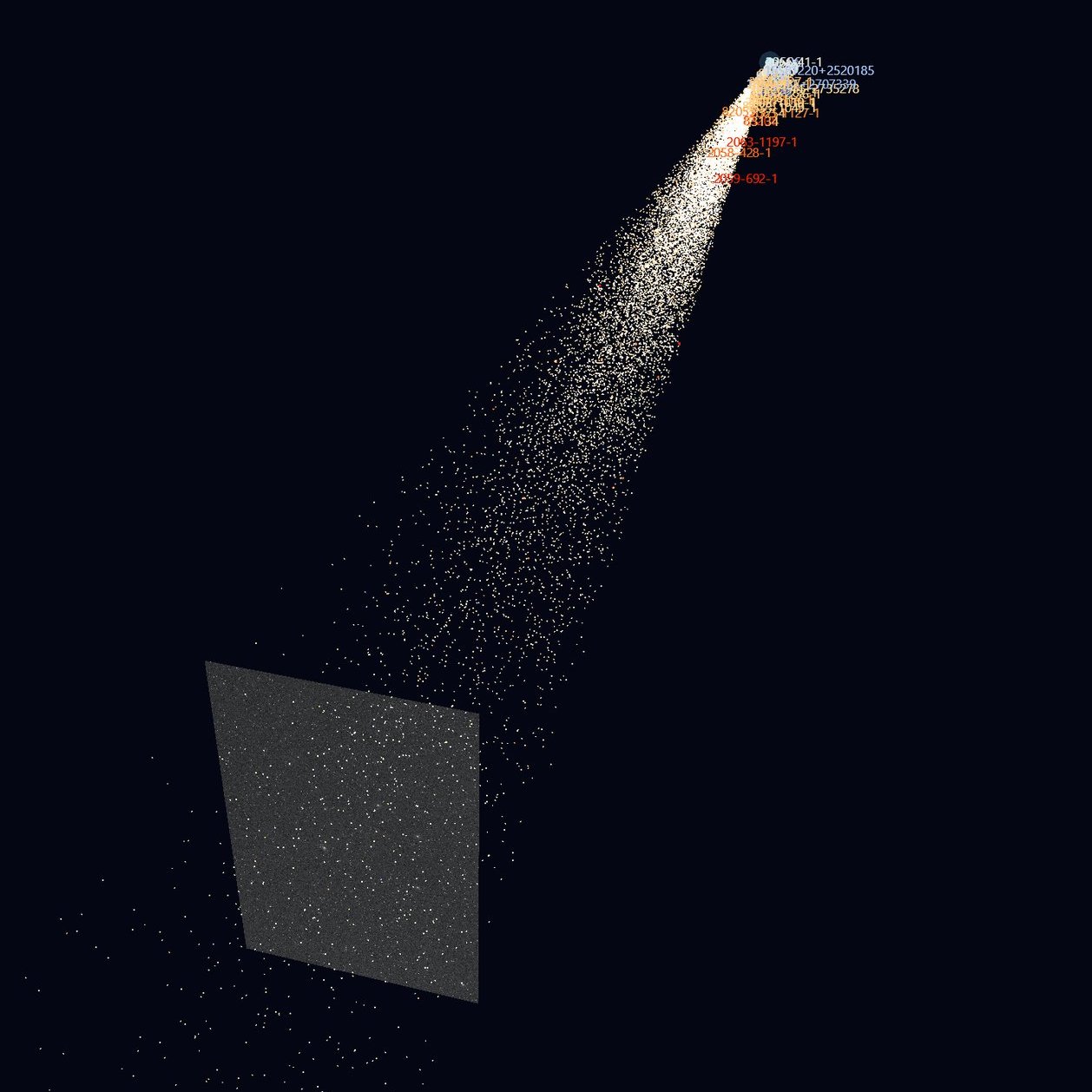
Interactive
Slide your image through space.
Turn on Tomography and drag your frame along the depth axis to see where its stars sit, not just where they landed on the detector.
Find Cluster highlights the largest group of stars that share a proper motion, the signature of a star cluster, in the 3D view, the table, and your image.
Complete tutorial
From one solved image to a 3D map of its stars.
The steps follow the order you use the mode: open an image, explore the map, tune the filters, search for a cluster, then use the depth tools and save. Settings, the bundled catalog, and the math behind distances and clustering are in the Reference part at the end.
What this mode does
A photograph is flat. Two stars that sit side by side in your frame can be very different distances away. Distance Map takes the footprint of one solved image, asks Gaia DR3 for the stars inside it, converts each parallax to a distance, and draws the field as a 3D point cloud with you at the origin.
- 3D map from one image. Open a solved or solvable frame and the map builds automatically. Step 3
- Filters. Limit stars by Gaia G magnitude, distance, parallax quality, and count, then rebuild. Step 6
- 3D navigation. Orbit, pan, and zoom with the mouse, or jump to preset cameras. Step 5
- Cluster search. Find Cluster highlights the largest group of stars that share proper motion and, when available, parallax. Step 7
- Linked group views. A found group is emphasized in the 3D map, colored in the table, and circled on your image. Only Group filters to it. Step 8
- Depth tools. A parsec ruler along the line of sight and per-star parallax uncertainty lines. Step 9
- Tomography. Your image becomes a translucent slice that you drag through the star cloud. Step 10
- Globular cluster catalog. A wireframe sphere for 17 bundled globular clusters, and a display model that compacts a cluster in depth. Step 11
- Image export. Save the current 3D view as PNG, JPEG, or BMP. Step 12
Before you begin
- Image
- One image of a star field: XISF, FITS, TIFF, PNG, JPEG, or camera RAW. Distance Map works on one image at a time, not a folder.
- Plate solving
- An image with a valid celestial WCS works directly. Without one, CAst tries to solve it with local Gaia matching and, if you have entered an Astrometry API Key under Settings > Open Settings > General, astrometry.net at the same time.
- Internet
- The Gaia DR3 query needs a network connection. Results are cached, so rebuilding the same field is faster.
- Graphics
- The 3D view needs OpenGL. Without it, the table and log still fill in, but the 3D panel shows OpenGL 3D view is unavailable in this environment.
- Good targets
- Rich Milky Way fields, nearby open clusters, and associations show the most depth structure. Sparse high-latitude fields give fewer stars.
Step by step
Build and explore a distance map
Follow the steps in order the first time. Each one builds on the map from the previous step.
Open the mode and an image
- On the mode picker, click the Distance Map card (“Map catalog stars in 3D using their measured distances.”). From another mode, choose Mode > Distance Map instead. Mode > Choose Mode... brings the picker back.
- Open your image. You can use either path below.
- In the Select source image for Distance Map dialog, pick the file and click Open.
Toolbar
Click Open, the first button on the Distance Map toolbar.
Menu or keyboard
Choose File > Open File, or press Ctrl + O.
The build starts as soon as you choose the file. You do not need to click anything else.
During a session, the file picker starts at the last image you opened in this mode.
Let the map build
While CAst works, Open changes to Building..., and the filters, Apply, View, Labels, Distance Ruler, Reset View, and Save are disabled. The Work Log at the bottom right and the status bar report each step:
- CAst checks the image WCS. If it is missing or unusable, the log reads “Embedded WCS was unusable; recovering a plate solution.” and CAst solves the image.
- It queries Gaia DR3 for stars at or below Mag Limit inside the solved field.
- It rejects stars with low parallax quality, stars without a positive parallax, stars beyond Distance Limit, and stars outside the image rectangle. The log counts each rejection.
- It keeps the brightest Max Stars survivors and draws them.
When the build is done, the status bar reads “Distance Map drew N star(s) from M Gaia source(s).” You now see four panels, which you can resize by dragging the dividers:
| Panel | What it shows |
|---|---|
| Field Image | Your image. Scroll to zoom, drag to pan. |
| 3D Distance Map | The Gaia stars at their distances, colored by BP-RP, with you as a small cyan point at the origin. |
| Catalog Stars | Name, G mag, Parallax (mas), Distance (pc), and RA / Dec (degrees) for every drawn star, brightest first. |
| Work Log | Progress, query counts, rejections, cluster results, and saved file paths. |
Model Cluster Depth is on by default. If CAst detects a co-moving group in the new map, it may already show some stars with a gold glow and gold table rows, and it redraws those stars in a compact depth model. To see plain parallax distances for every star, turn Model Cluster Depth off. How it works
If the build fails, a Distance Map failed message explains why. The most common causes are an image that could not be solved and a failed network query. See Troubleshooting.
Move around the 3D view
The map opens in the Orbit Overview camera: an angled view of the whole cloud. In most fields the stars form a long narrow cone pointing away from you, because the image covers a small patch of sky but a large range of distances.
- Left-drag: orbit around the center
- Mouse wheel: zoom in or out
- Middle-drag: pan
- Ctrl + left-drag: pan (moves the slice instead while Tomography is on)
- Ctrl + middle-drag: pan sideways and forward or back
- Ctrl + wheel: change the field of view
- Arrow keys: orbit, after you click the 3D view once
Preset cameras
- Open the View list on the toolbar.
- Choose Top-Down to look straight down on the cloud, Side View for a low side-on view, or Field Center for a closer view of the stars. Tomography Face-On is used with Tomography in Step 10.
- After orbiting by hand, click Reset View to return to the selected preset.
Every preset aims at the middle of the visible stars, or at the highlighted group when one exists.
Labels
Labels is on by default and names up to 40 stars, the brightest ones. Turn it off to see the cloud without text. Once a group is highlighted, the labels switch to group members.
Change the filters
The four filters at the right end of the toolbar decide which Gaia stars reach the map. They only take effect when you rebuild.
- Set Mag Limit to the faintest Gaia G magnitude you want. Default 17.0 mag.
- Set Distance Limit to the farthest distance you want. Default 500.0 pc.
- Set Min SNR, the minimum parallax divided by its error. Default 5.0. Set it to 0 to turn the quality cut off.
- Set Max Stars, the number of stars drawn after filtering. Default 500.
- Click Apply. CAst re-queries Gaia and rebuilds the map with the new values.
CAst saves these four values and uses them for the next image you open.
Map too crowded
Lower Max Stars or Distance Limit, or raise Min SNR to drop stars with noisy distances.
Map too empty
Raise Distance Limit, Mag Limit, or Max Stars. If the log shows many low-SNR rejections, lower Min SNR.
The default 500 pc keeps the map local. Many open clusters are 1,000 to 3,000 pc away, and globular clusters are farther still. Raise Distance Limit before you search for a distant cluster.
Distance is 1000 divided by parallax. When the parallax error is large, that distance is unreliable. Lowering Min SNR fills the map, but the added stars have poorly known depths. More on this
Ranges and the Gaia row cap are listed in Filters and defaults.
Find a cluster
Stars born together drift through space together, so they share a proper motion and, if the cluster is close enough, a parallax. Find Cluster looks for the largest such group among the stars currently drawn.
- Optional: click Advanced... to open Distance Map Cluster Detection. Choose a Preset: Default, Tight, Loose, Parallax Priority, or Custom. The text under the list describes each one. Click OK.
- Click Find Cluster.
- Read the Work Log line, for example “Highlighted 42 likely cluster member(s) using the Default preset via Lightweight (parallax-aware).”
After a successful search:
- 3D map. Members are drawn larger with a gold glow, and the cameras aim at them.
- Catalog Stars. Member rows turn gold.
- Field Image. Members are circled in their BP-RP color. Names appear when there are six or fewer.
- Toolbar. Find Cluster becomes Find All, and Only Group becomes available.
If nothing is found, CAst shows No cluster found: “Could not identify a likely cluster from the current map stars. Try loosening the preset or increasing the star count.” Try the Loose preset, raise Max Stars, or widen Distance Limit and click Apply.
In Advanced..., turn on Turn on Only Group automatically after detection if you always want the field stars hidden after a search. Click Show Expert Controls to set the backend, strictness, and parallax use yourself. All settings
A highlighted group is a candidate, not a confirmed cluster. Check whether a known cluster sits at that position in Sky Explorer or SIMBAD, compare the members' parallaxes in the table, and turn on Parallax Uncertainty to see how well their depths are constrained.
Work with the group
The image, the table, and the 3D map share one group. What you do to the group shows up in all three.
- Turn on Only Group. The 3D map and the Catalog Stars table now show members only. The image keeps its member circles.
- Orbit the group and read the members' Parallax and Distance (pc) values in the table.
- Turn Only Group off to see the group against the rest of the field again.
- Click Find All to clear the group. The log reads “Returned to the full distance map selection.”
To try different detection settings, click Find All, change them in Advanced..., and click Find Cluster again. Clicking Apply also clears the group, because the map is rebuilt.
To check the same stars on a color-magnitude diagram, open the image in HR Diagram mode. A real cluster tends to form a clean sequence there.
Check depth and uncertainty
Distance Ruler
- Turn on Distance Ruler.
- A line appears along the image's line of sight, just beside the stars, from the nearest to the farthest visible star, with up to seven parsec ticks.
- Switch View to Side View to read the depth of any part of the cloud against the ticks.
Parallax Uncertainty
- Turn on Parallax Uncertainty.
- Each star gets a pale line along its line of sight covering the distance range allowed by its parallax error. The log reports how many lines were drawn.
- When a group is highlighted, only members get lines, which makes it easy to see whether the group is compact in depth or only looks compact.
Long lines mean the distance is poorly known. Short lines mean the depth is well measured. If most lines are long, raise Min SNR and click Apply.
Slice with Tomography
Tomography puts your own image into the 3D scene as a translucent plane perpendicular to the line of sight, aligned with the image WCS. Moving it through the cloud shows which stars in your frame sit in front of or behind a given depth.
- Click Tomography. The button stays pressed.
- CAst places the slice halfway through the depth range of the stars and switches View to Tomography Face-On, so you look at the image straight on. The log records the slice depth in parsecs.
- Hold Ctrl and left-drag up to push the slice farther away, or down to bring it closer. Dragging the full height of the view covers the whole depth range.
- Switch View to Orbit Overview or Side View to see the slice from the side, inside the cloud.
- Click Tomography again to remove the slice.
- Ctrl + left-drag up: slice moves away from you
- Ctrl + left-drag down: slice moves toward you
Tomography stays on when you click Apply. Opening a new image turns it off.
Compare with a globular cluster
If your image shows one of the globular clusters in CAst's bundled list, you can draw the catalog's distance and size for it. Globular clusters are thousands of parsecs away, so their Gaia parallaxes are small and noisy.
- Raise Distance Limit beyond the cluster's distance (for example 15000 pc), lower Min SNR, raise Max Stars, and click Apply.
- Turn on Catalog Sphere. If a bundled cluster matches the field, a gold wireframe sphere appears at its catalog distance, and the log reads, for example, “Matched catalog cluster M13 (...)”. If none matches, the log says so.
- With Model Cluster Depth on, the group members are placed inside that sphere at the catalog distance instead of being spread along their noisy parallax distances.
- Turn Model Cluster Depth off to compare with the raw Gaia distances.
The list of clusters and the matching rules are in Globular cluster catalog.
The sphere and the modelled depths are display aids. Catalog Sphere uses external catalog distances, not Gaia parallax. Model Cluster Depth places members in a toy model and changes the Distance (pc) values shown in the table for those stars while it is on.
Save the view
- Set up the camera, labels, ruler, and slice the way you want the figure to look.
- Click Save.
- In Save Distance Map Image, keep or change the suggested name, which is your image name followed by
_distance_map.png, in the same folder as the image. - Choose PNG, JPEG, or BMP and click Save. The log records the saved path.
The file is a capture of the 3D view at its current size. Enlarge the 3D panel first for a larger image. Any extension other than PNG, JPEG, or BMP is replaced with .png.
Distance Map does not export a table. The File menu has no export entries in this mode. To keep the numbers, read them from the Catalog Stars table or query Gaia directly.
Reference
Controls, settings, and how it works
Look things up here after you know the workflow.
Toolbar controls
The toolbar runs left to right in three groups: data and cluster controls, view controls, and filters.
- Open
- Choose a source image and build the map. Shows Building... while a build runs.
- Find Cluster / Find All
- Search the drawn stars for the largest co-moving group, or clear the group.
Available once a map exists.
- Advanced...
- Opens Distance Map Cluster Detection. Settings
- Only Group
- Show only group members in the 3D map and the table.
Available once a group exists. Off by default.
- Model Cluster Depth
- Place group members in a compact, center-weighted depth model. Detects a group automatically if you have not run Find Cluster.
On by default.
- Parallax Uncertainty
- Draw each star's distance interval along its line of sight.
Off by default.
- Catalog Sphere
- Draw a sphere for a matching bundled globular cluster.
Off by default.
- View
- Preset camera: Orbit Overview, Top-Down, Side View, Field Center, Tomography Face-On.
Default Orbit Overview.
- Labels
- Show up to 40 star names.
On by default.
- Distance Ruler
- Show a parsec scale along the line of sight.
Off by default.
- Tomography
- Show your image as a movable slice. Ctrl + left-drag moves it.
Off by default.
- Reset View
- Return the camera to the selected View preset.
- Save
- Save the current 3D view as PNG, JPEG, or BMP.
- Mag Limit, Distance Limit, Max Stars, Min SNR
- Filters for the Gaia query. Defaults and ranges
- Apply
- Re-query Gaia and rebuild the map with the current filters.
Available once an image is loaded.
Find Cluster, Tomography, Distance Ruler, Model Cluster Depth, Parallax Uncertainty, and Catalog Sphere stay disabled until a map with stars exists. Hover over any control in the app to see its tooltip.
Filters and defaults
| Filter | Default | Range | Meaning |
|---|---|---|---|
| Mag Limit | 17.0 mag | 1.0 to 22.0, step 0.5 | Faintest Gaia G magnitude queried. |
| Distance Limit | 500.0 pc | 1.0 to 50000.0, step 50 | Farthest distance kept, from 1000 / parallax. |
| Max Stars | 500 | 10 to 50000, step 50 | Stars drawn after filtering, brightest first. |
| Min SNR | 5.0 | 0.0 to 50.0, step 0.5 | Minimum parallax / parallax error. 0 turns the cut off. |
CAst asks Gaia for up to four times Max Stars rows, and at least 500, so that enough stars remain after filtering. The filters run in this order:
- Parallax SNR at or above Min SNR.
- Positive parallax, and distance at or below Distance Limit.
- Position inside the solved image rectangle, not just the circular query area.
- Sort by G magnitude, then distance, and keep the first Max Stars.
The first lines of the Work Log after each build summarize what each step kept and rejected.
Mouse and keyboard
3D Distance Map
- Left-drag: orbit
- Ctrl + left-drag: pan, or move the Tomography slice while it is on
- Middle-drag: pan
- Ctrl + middle-drag: pan sideways and forward or back
- Wheel: zoom
- Ctrl + wheel: field of view
- Arrow keys: orbit (click the view first)
Field Image
- Wheel: zoom at the cursor
- Left-drag: pan
Application
- Ctrl + O: open an image (File > Open File)
The mode has no right-click menus. Clicking a table row or a star does not select it in the other panels. The panels are linked through the highlighted group.
Cluster detection settings
Click Advanced... to open Distance Map Cluster Detection. Click OK to keep your changes or Cancel to discard them. The settings are saved and used by the next Find Cluster and by Model Cluster Depth.
| Preset | Strictness | Parallax | Cleanup | Use it for |
|---|---|---|---|---|
| Default | 1.00 | Auto | On | A balanced first search. |
| Tight | 0.80 | Auto | On | The dense core of a group. |
| Loose | 1.35 | Proper motion only | Off | Broad associations and sparse fields. |
| Parallax Priority | 0.95 | Require parallax | On | Members must have a positive parallax. |
| Custom | Your own values | Set by the expert controls. | ||
All built-in presets use the Auto (recommended) backend.
- Turn on Only Group automatically after detection
- Turns on Only Group after every successful Find Cluster.
Off by default.
- Show Expert Controls
- Shows the four settings below. Changing any of them switches the preset to Custom. Choosing Custom opens them automatically.
- Backend
- Auto (recommended) uses scikit-learn's DBSCAN for 180 or more stars and a built-in version below that. Lightweight always uses the built-in version. Sklearn DBSCAN always uses scikit-learn, falling back to the built-in version if it is not installed.
- Strictness
- Scales the clustering radius. Lower values give tighter groups; higher values give looser groups.
Default 1.00, range 0.40 to 2.50.
- Parallax
- Auto uses parallax when enough stars have it. Require parallax always uses it and drops stars without it. Proper motion only ignores it.
- Apply magnitude/color cleanup
- Removes members that sit far from the others in color and absolute magnitude.
On by default.
Reading the map
- Color
- Gaia BP-RP, from blue (about -0.4) through white and orange to red (about 3.0). Green means BP-RP is missing.
- Size
- Brighter G magnitude gives a larger point, from 2 to 10 pixels.
- Gold glow
- A group member. Members are drawn at least 7 pixels.
- Cyan point at the origin
- You, the observer.
- Pale lines along a sightline
- Parallax Uncertainty intervals.
- Light blue line with ticks
- Distance Ruler, in parsecs.
- Gold wireframe sphere
- Catalog Sphere for a matched globular cluster.
- Translucent image plane
- The Tomography slice.
The cone shape of most maps is expected. Your image covers a small angle of sky, so the field widens with distance. Clumps strung out along the line of sight are often parallax scatter rather than real structure; Parallax Uncertainty shows which.
Model Cluster Depth
Parallax errors stretch a real cluster into a long streak along the line of sight. Model Cluster Depth redraws the group as a compact ball so you can read it as one object.
- Members. If you ran Find Cluster, CAst uses that group. If not, it runs the same search with your current cluster settings. An automatically detected group is highlighted in gold and enables Only Group, but it is not circled on the Field Image and Find Cluster keeps its name.
- Center. The distance is the inverse-variance weighted mean parallax of the members, converted to parsecs. With Catalog Sphere on and a matched cluster, the catalog distance and position are used.
- Radius. From the angular spread of the members, limited to between 10 pc and 8% of the distance, or the visible core radius of a matched catalog cluster.
- Placement. Each member stays on its own line of sight and is moved to a repeatable depth inside the sphere, weighted toward the center.
This is a display model, not a measurement. While it is on, the Distance (pc) column shows modelled distances for members. The Parallax column is not changed. Turn Model Cluster Depth off before you read member distances.
Globular cluster catalog
Catalog Sphere uses a bundled list of 17 globular clusters with catalog positions, distances, and radii:
M3, M4, M5, M10, M12, M13, M14, M15, M19, M22, M28, M53, M62, M79, M92, 47 Tuc, and Omega Cen.
A cluster matches when it lies within the field radius plus its visible core radius plus 0.35° of the field center or of the group's mean position, or when at least five map stars fall inside its visible core. The best match favors clusters inside the footprint, with more map stars nearby, and closer to the field center.
The sphere marks the visible core: about 28% of the catalog radius, capped at an angular radius of 0.28° and never less than 4 pc. When a group exists, its members are trimmed to stars near that core if at least five remain.
From parallax to distance
As Earth orbits the Sun, a nearby star shifts slightly against the background. Half of that shift is the parallax, ϖ. Gaia measures it in milliarcseconds (mas). Distance Map converts it with
distance (pc) = 1000 / ϖ (mas)
A star with a parallax of 10 mas is 100 pc away. A star with 1 mas is 1,000 pc away. Stars with zero or negative parallax get no distance and are dropped.
The parallax SNR is ϖ divided by its error σ. The Parallax Uncertainty line for each star runs from 1000 / (ϖ + σ) to 1000 / (ϖ − σ). Because the conversion is an inverse, a small error in a small parallax becomes a large error in distance, and the far end of the line grows quickly. That is why Min SNR defaults to 5: at that level 1000 / ϖ is a reasonable estimate. At lower SNR the simple inversion becomes biased.
Each star is then placed in 3D from its RA, Dec, and distance, in ICRS Cartesian coordinates in parsecs, with the observer at the origin.
How the cluster search works
Find Cluster uses DBSCAN, a density-based method that groups points with many close neighbors and leaves isolated points as noise.
- Eligible stars. Drawn stars with proper motion in RA and Dec. At least five are needed.
- Features. Proper motion in RA and Dec, plus parallax when it is used. With Parallax set to Auto, parallax is used when at least 35% of the stars (and at least six) have a positive parallax.
- Scaling. Each feature is centered on its median and divided by 1.4826 times its median absolute deviation, so no single feature dominates.
- Neighborhood. The minimum group core is the square root of the star count, between 5 and 12. The search radius is 1.25 times the 30th percentile of each star's distance to that many neighbors, multiplied by Strictness and kept between 0.25 and 2.4.
- Result. The largest group is kept if it is at least the minimum core size.
- Cleanup. With magnitude/color cleanup on, members are placed on a color versus absolute magnitude plot (MG = G − 5 log10(d) + 5), and outliers far from their neighbors are removed. The cleanup is skipped if it would remove more than 40% of the members.
The search only sees the stars currently drawn. Changing Max Stars, Distance Limit, or Min SNR changes the stars it can find.
What is saved
- Saved between sessions
- The four filters, all cluster detection settings, Model Cluster Depth, Parallax Uncertainty, and Catalog Sphere.
- Reset for each image
- The group, Only Group, and Tomography.
- Not saved
- View, Labels, and Distance Ruler.
- Switching modes
- Leaving Distance Map clears the loaded image and map unless Keep mode memory when switching is on under Settings > Open Settings > General.
Troubleshooting
The build fails with “Could not recover a usable celestial WCS”
The image has no usable WCS and CAst could not solve it. Plate-solve it in your stacking or solving software first, or enter an Astrometry API Key under Settings > Open Settings > General so CAst can also try astrometry.net.
The map has very few stars
Read the first lines of the Work Log. If many stars were rejected for parallax SNR, lower Min SNR. If many were beyond the distance cut, raise Distance Limit. If Gaia returned few stars, raise Mag Limit. Click Apply after each change.
Some stars already glow gold before I clicked Find Cluster
Model Cluster Depth is on and detected a group by itself. Turn it off to see the plain map, or click Find Cluster to run your own search.
The Distance (pc) values in the table do not match 1000 / Parallax
Those rows are group members placed by Model Cluster Depth. Turn it off to see the parallax distances.
Find Cluster says no cluster was found
Try the Loose preset in Advanced..., or raise Max Stars and Distance Limit and click Apply. Fields without a real co-moving group often return nothing, which is the expected answer.
Find Cluster, Tomography, and the display options are greyed out
They need a finished map with at least one star. Wait for Building... to change back to Open, and check that the map drew stars.
Ctrl+drag pans the camera instead of moving the slice
Tomography is off. Click Tomography so the button stays pressed, then hold Ctrl and left-drag up or down.
Tomography Face-On looks the same as Orbit Overview
That camera needs an active slice. Click Tomography first.
Catalog Sphere does not appear
The field does not match one of the 17 bundled globular clusters, and the log says “No named globular cluster matched the current field for catalog distances.” Open clusters are not in this catalog.
Clicking a row in the table does not highlight the star in 3D
Distance Map does not link individual selections. The image, table, and 3D view share the highlighted group, and Only Group filters all of them.
The 3D panel says OpenGL is unavailable
CAst could not start its OpenGL 3D view on this computer, which usually points to the graphics driver or a remote desktop session. Updating the graphics driver or running CAst locally often helps. The table and log still work without it.
The saved image is small
Save captures the 3D view at its on-screen size. Drag the panel dividers or maximize the window before saving.