Sky Explorer
Found something in your image?
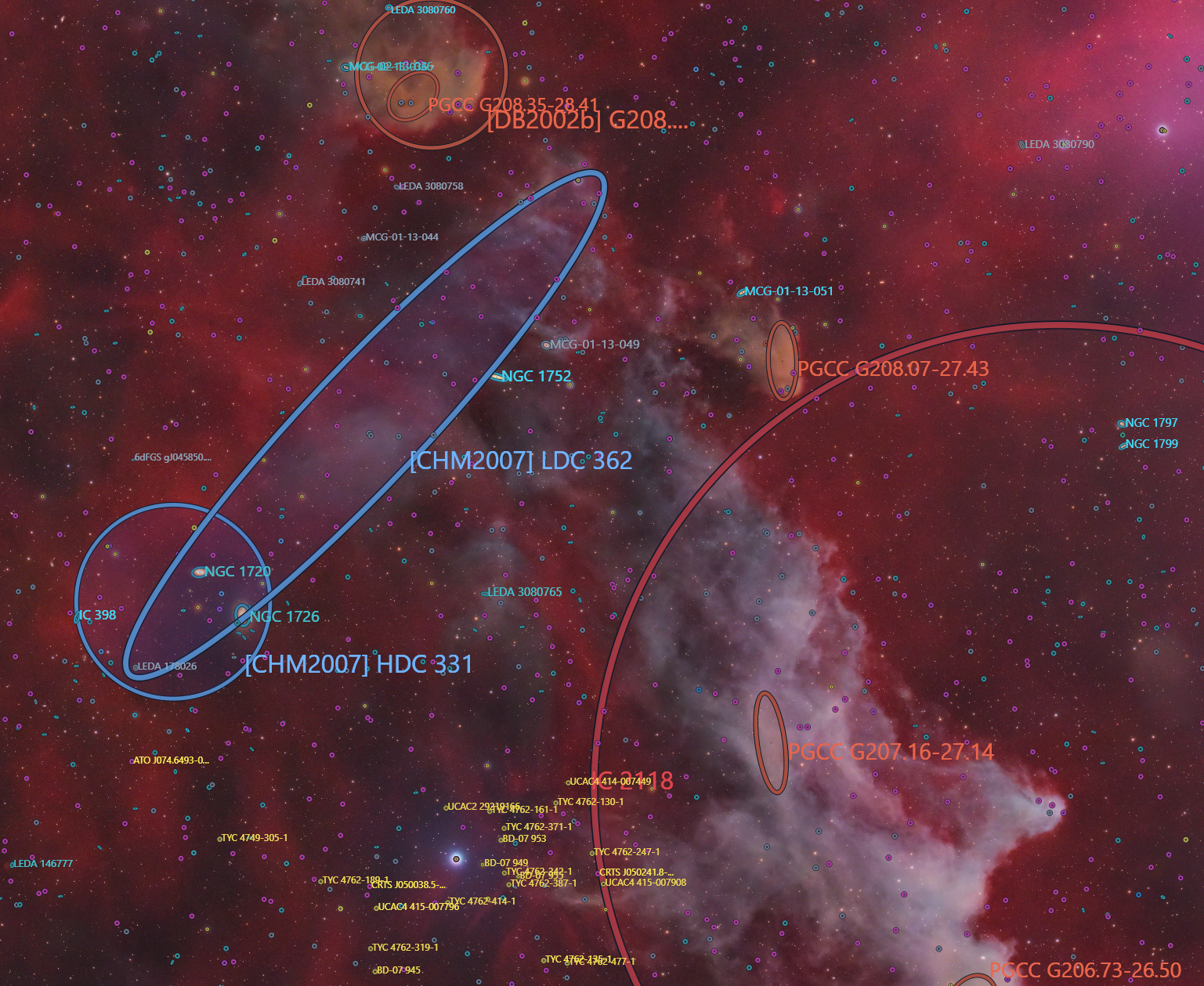
Sky Explorer solves that astrophoto if it needs to, then marks the catalogued objects in the frame. You can see what is already named.
Is it already known?
Is it a discovery?
A faint shell, a dust lane, or a small galaxy can show up in a long exposure before you know whether anyone has catalogued it. Sky Explorer puts SIMBAD, NGC/IC, Sharpless, Barnard, Van den Bergh, HyperLEDA, Gaia, VSX, and the known solar-system lists on that same image.
If the structure is not marked, those catalogs did not return it.
Object types
Choose how specific the search should be.
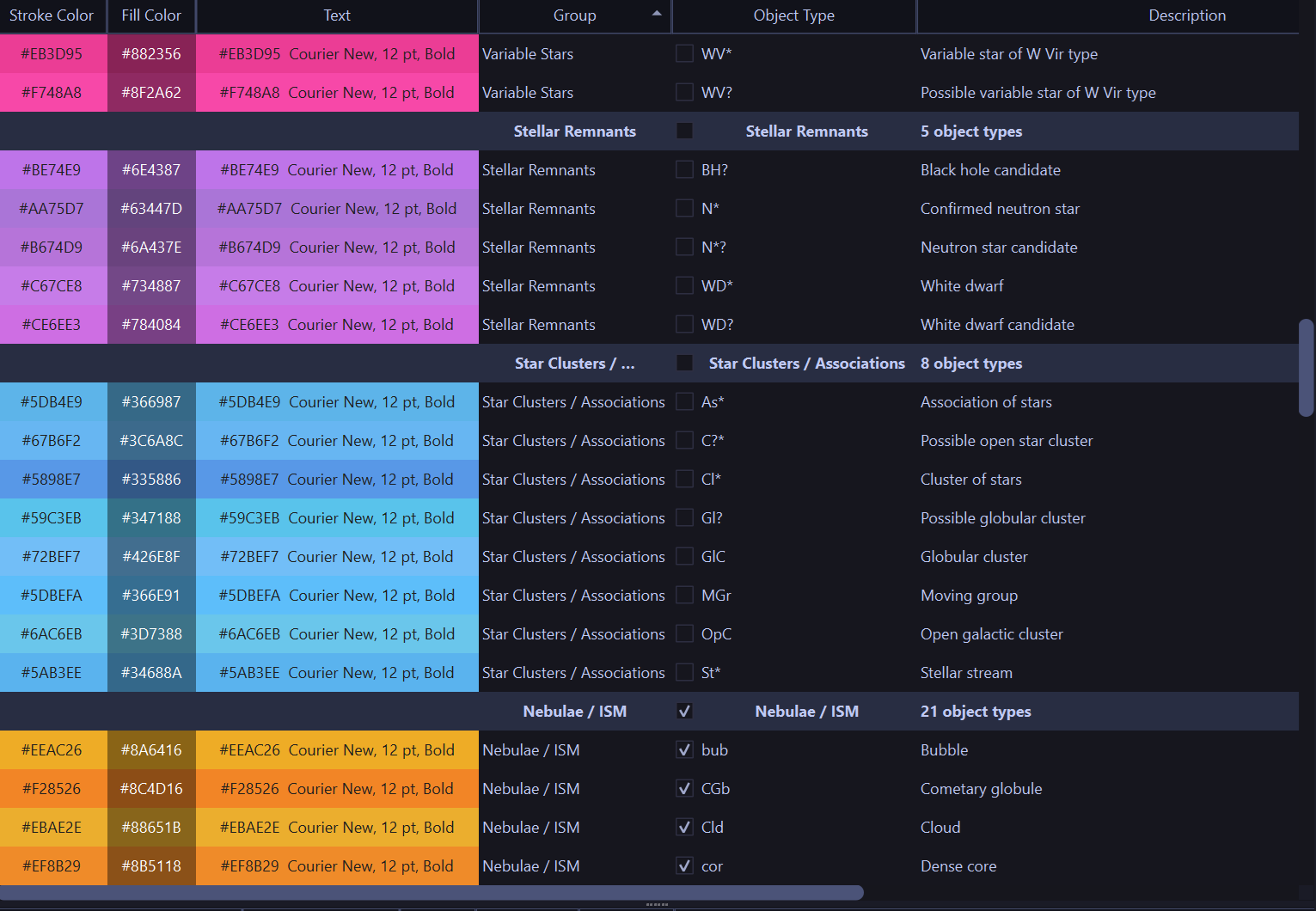
Simple labels the six common deep-sky classes: emission nebula, reflection nebula, dark nebula, galaxy, open cluster, and globular cluster.
Advanced adds the broader named classes. That includes planetary nebulae, H II regions, supernova remnants, molecular clouds, galaxy pairs, groups, and clusters, active galaxies, variable stars, Gaia stars, exoplanet hosts, and known asteroids and comets.
Scientific lists the SIMBAD object-type codes, so you can search for one category. Planetary nebula work uses PN and PN?. Selecting every scientific type also adds the denser HyperLEDA galaxy supplement.
Magnitude limit
See how faint the field goes.
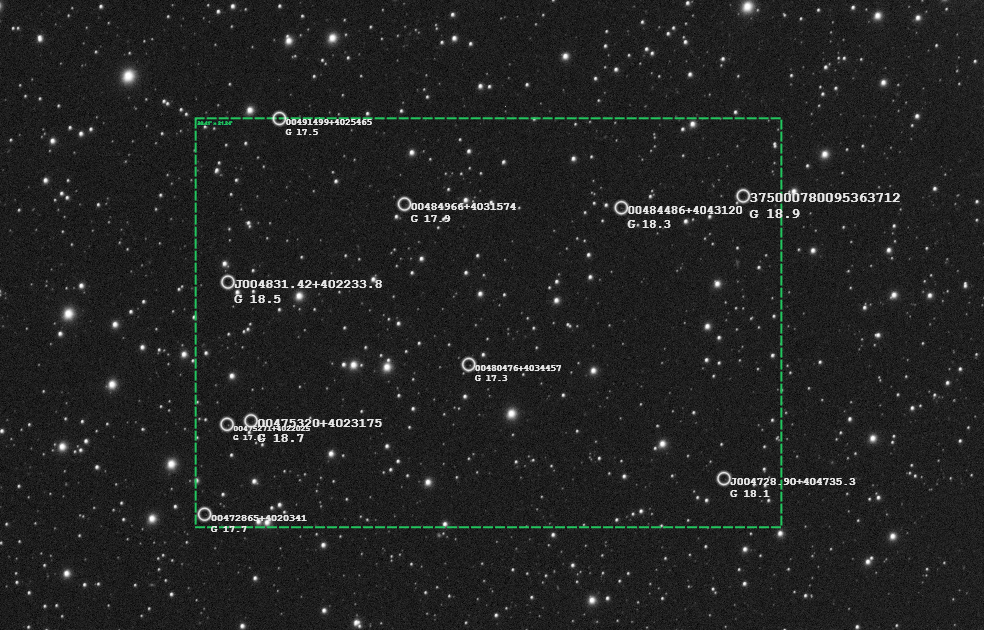
Mag Limit labels representative Gaia stars from bright to faint, in steps of 0.5 magnitude, with the Gaia G magnitude under the name. Settings > Sky Explorer sets how many examples appear in each step. Those stars are also listed in the results table under Magnitude Limit Measurement.
Surveys
Compare it with the surveys.
Your image stays side by side with several surveys, and they move together. See whether that structure is in them too.
That is how you check something you found.
Complete tutorial
From opening Sky Explorer to every check in the workspace.
Use this as the operating manual: open one image, choose the object types, explore the field, then inspect anything the catalogs did not mark.
Start Sky Explorer
Launch CAst. Open the Mode menu and choose Sky Explorer. The workspace is a solved-field viewer: object types and results on the left, the image on the right, and Work Log plus Inspector underneath.
- Use Sky Explorer on one image. It is the catalog check, not a light-curve or moving-object search.
- The left header cycles Simple, Advanced, and Scientific, then offers Select All or Unselect All and Filter.
- The image header has stretch, Curves, Invert, Reset, Mag Limit, Center Object, and Export.
Open the image
Use File > Open File, or click Open. Sky Explorer accepts FITS, XISF, TIFF, PNG, and JPEG. The preview loads immediately. The button then changes to Explore.
A frame does not have to be solved already. If the header has no usable WCS, Explore can send it to astrometry.net when an API key is configured.
Choose the object types
Click the mode button to cycle the list. Checked rows are the only types Explore will query and draw.
- Simple keeps six deep-sky classes, all checked by default: Emission Nebula, Reflection Nebula, Dark Nebula, Galaxy, Open Cluster, and Globular Cluster.
- Advanced keeps those six and adds human-readable classes such as Planetary Nebula, HII Region, Supernova Remnant, Galaxy Group, Quasar, Variable Star, Star, Exoplanet Host, and Asteroid/Comet.
- Scientific replaces the list with SIMBAD condensed codes. Use PN for a planetary nebula and PN? for a possible planetary nebula. Gaia Star, VSX Variable, Exoplanet Host, and Asteroid/Comet stay available as their own rows.
- Click a stroke, fill, or text cell to change that type’s color or font. Group hues live in Settings.
- Filter > Hide Objects Without Magnitude removes rows that have no numeric magnitude. Deep-sky objects with unknown magnitude stay available unless that filter is on.
Explore refuses to start until at least one object type is checked and at least one matching catalog source is enabled in Settings.
Explore the field
Click Explore. Sky Explorer checks the WCS, measures the footprint from the image center and corners, and queries only the catalog layers required by the checked types.
- Deep-sky searches use SIMBAD, then supplement them with NGC/IC, Sharpless, Barnard, and Van den Bergh. Galaxy rows can take magnitude and ellipse geometry from HyperLEDA.
- Scientific mode, with every scientific type selected, also requests the denser HyperLEDA/PGC galaxy supplement.
- Star rows use Gaia DR3, limited by Gaia Max Mag. Variable stars come from VSX. Exoplanet hosts come from the NASA Exoplanet Archive. Asteroids and comets need an observation time in the header.
- The Work Log records each stage. The Inspector shows the field center, radius, corner coordinates, and layer counts when no row is selected.
Read an object on the image
Markers use the catalog position. Galaxies with major axis, minor axis, and position angle are drawn as ellipses. Extended nebulae can scale from the catalog diameter so a large Sharpless region covers more of the visible structure.
- Click a marker to select its row. Click a row to select its marker.
- Turn on Center Object if you want the image to stay centered on the selection.
- The Inspector lists name, catalog, type, sky coordinates, pixel position, magnitude, and angular size when the catalog provides them.
- Large fields cap how many labels are drawn at once. The marker and the results table still include the rest.
Check a place that is not marked
Right-click the image and choose Search. CAst opens a SIMBAD coordinate search at that WCS position. The radius is Search Radius in Settings > Sky Explorer.
Use this on the wisp or shell you noticed. A SIMBAD hit means something is already recorded near that coordinate. An empty search means SIMBAD returned nothing inside the radius you set.
Measure the faint end with Mag Limit
Click Mag Limit. If Explore has not already loaded usable Gaia stars, Sky Explorer runs its own Gaia query, then labels representative stars in 0.5 magnitude intervals from bright to faint.
- The label prefers a catalog name such as HD or HIP when Gaia provides one, and puts the Gaia G magnitude under that name.
- Mag Limit Examples in Settings controls how many stars are shown in each interval.
- The same stars appear in the results table as the Magnitude Limit Measurement group. Double-click a row to open that star’s catalog page.
- Turn Mag Limit off and on again after you change the Gaia magnitude settings. It queries again instead of reusing the previous star list.
- This is a Gaia G sampling of the field. It is not a detection limit for extended nebulosity.
Use the results table
Rows are grouped by object family, with headers such as Galaxies (57 objects). Click a header to collapse that group. Columns are Name, Type, Mag, RA, Dec, and Angular Size.
- Double-click a row to open the matching page: SIMBAD, CDS/VizieR, VSX, HyperLEDA, the NASA Exoplanet Archive, or the JPL Small-Body Database.
- Sorting reorders objects inside each group. The group sections stay in place.
- The Type cell shows the resolved name, such as Galaxy Group. The tooltip keeps the raw SIMBAD code.
Adjust the display
Stretch can be None, Asinh, Sqrt, or Log. Asinh is the default after an image loads. Curves opens a histogram editor for the display. Invert flips the view. Reset restores the display controls.
- Drag to pan. Use the wheel to zoom. Labels that sit completely outside the view stay off screen.
- Changing an object-type checkbox updates the current overlays. It does not recenter the image unless Center Object is on.
- In Settings, galaxy annotation can be limited by magnitude, or limited to galaxies that have enough geometry for an ellipse.
- Extended Nebula Scale and Scale Stroke Width are on by default so large nebulae remain readable.
Settings that change the query
Open Settings > Sky Explorer. These controls persist, and saving them refreshes the current colors and overlays.
- Search Radius is the right-click SIMBAD cone, in arcseconds.
- Gaia Max Mag is the faint limit for Gaia, VSX, exoplanet hosts, and other star-like rows. The default Gaia limit is 17.0. Deep-sky rows with no magnitude are not removed by this cutoff.
- Gaia Hard Cap and Gaia Cap Rows optionally limit how many Gaia rows a dense field may request.
- Catalog Sources can turn each layer off: SIMBAD Deep Sky, SIMBAD General Objects, Solar System Objects, VSX Variable Stars, Gaia DR3 Stars, and NASA Exoplanet Hosts. Explore runs only the enabled layers that match the checked object types.
- Fill opacity, stroke opacity, marker color relation, and text color relation control how the generated colors sit on the image.
Export the annotated view
Click Export and save the current annotated image as PNG, JPEG, or BMP. The export uses the display you are looking at, including stretch, curves, invert, and the markers that are currently visible.
What an unmarked structure means
A mark means that object was returned for a checked type, from an enabled catalog, inside this footprint. No mark means that combination did not return it.
- Change mode or check a more specific type, then Explore again. A planetary nebula can be absent from Simple and present when Planetary Nebula, PN, or PN? is checked.
- Confirm the matching catalog source is enabled, and that a star-like object is brighter than Gaia Max Mag.
- Right-click the position and run the SIMBAD search before you treat the object as uncatalogued.
- An empty result is a catalog check. It is not, by itself, a published discovery.
Open the workspace
Load an image. See what is already named.
Explore the field, click a marked object, and search any coordinate the catalogs left blank.