HR Diagram Mode
Understand the stars in your image
CAst is the only desktop tool that takes a single solved astrophoto and turns every measurable star into an interactive HR diagram: photometry, Gaia, proper motion, stellar class, and catalog lookup in one guided workspace.
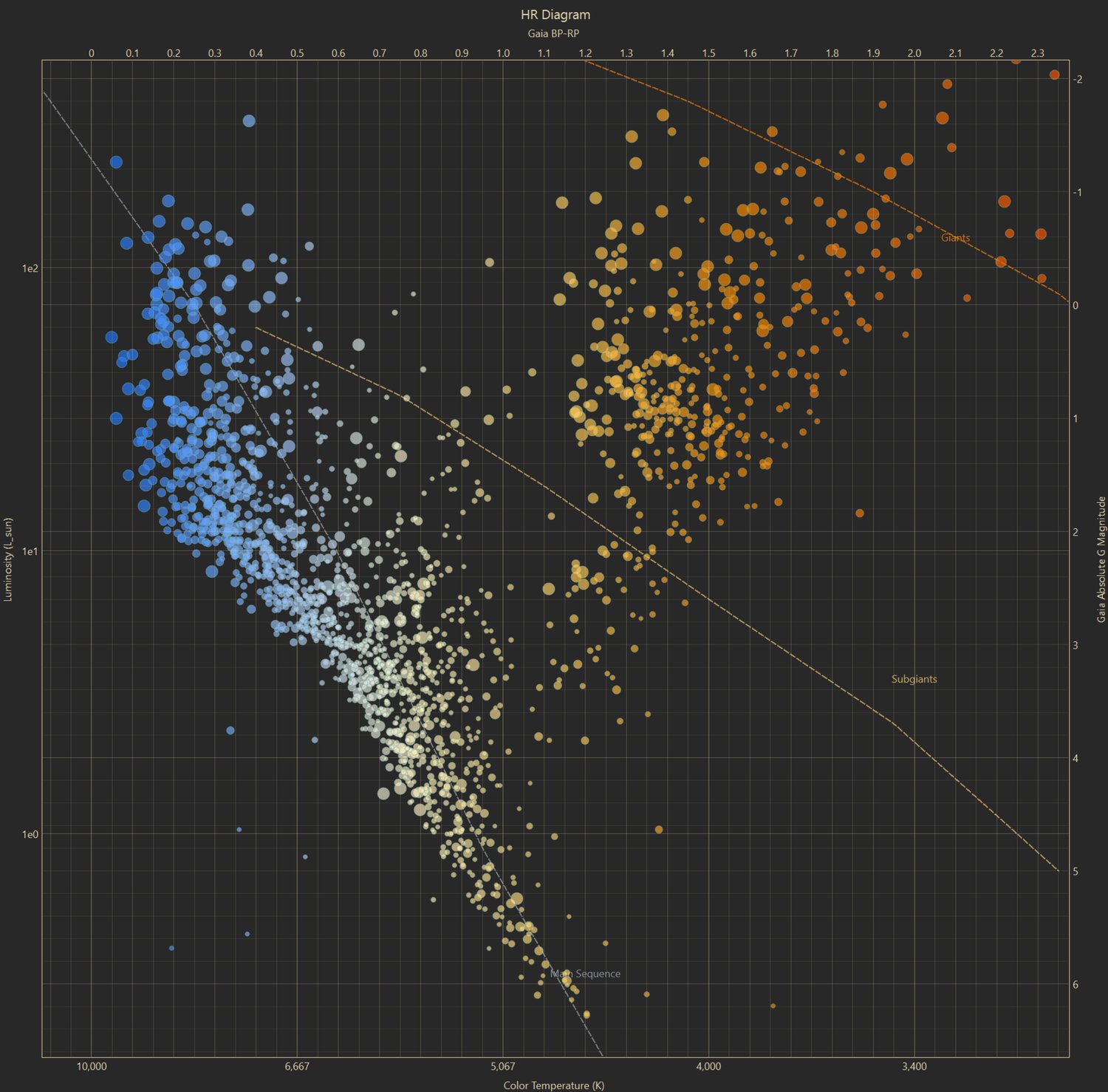
What an HR diagram is
The most important plot in stellar astronomy.
A Hertzsprung-Russell (HR) diagram is probably the most important diagram in stellar astrophysics. It tells us how stars evolve, which stages they go through, and even how old the universe is.
And you can do all of this and more with your images.
Interactive
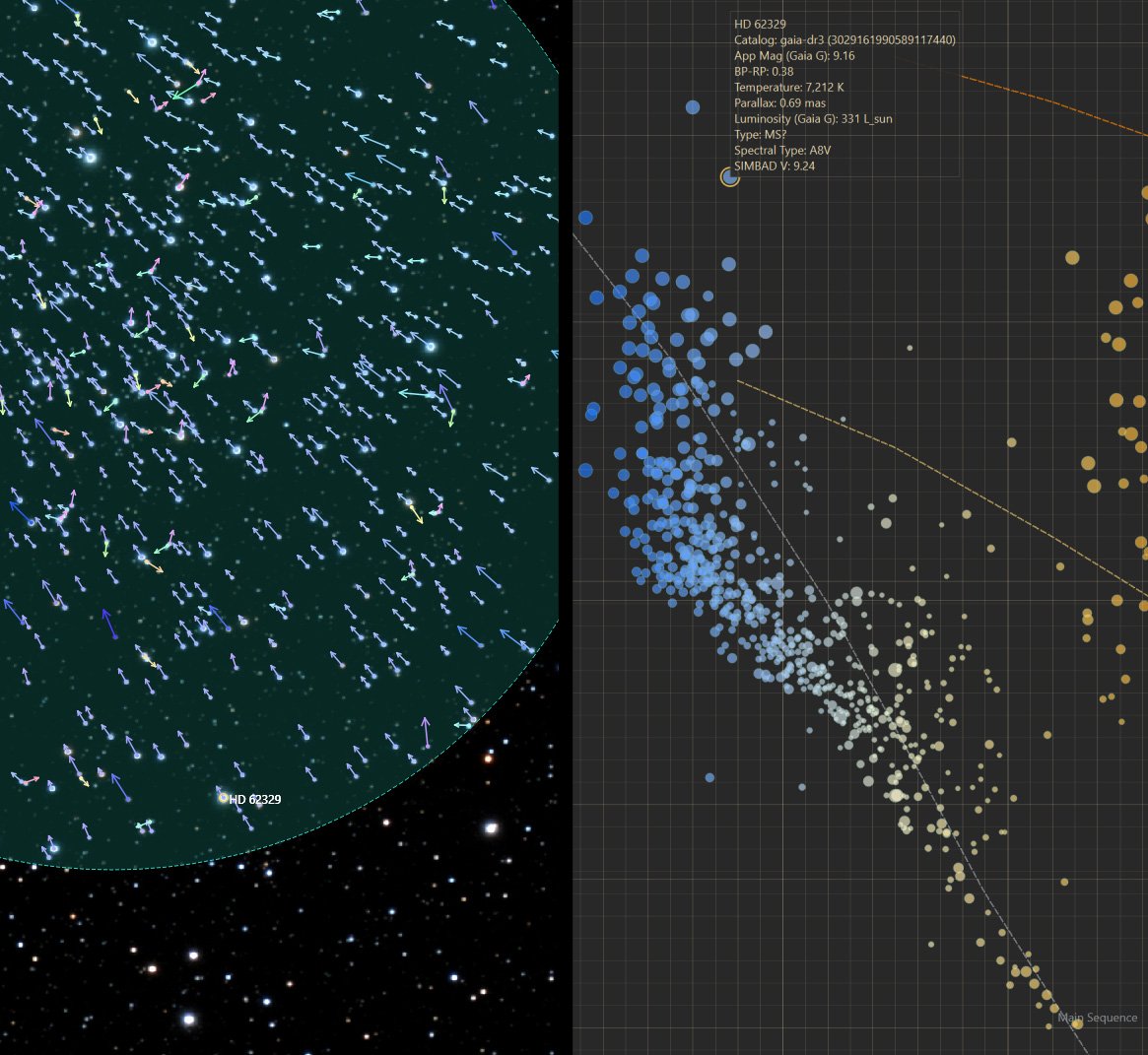
Click a star. See it on the diagram.
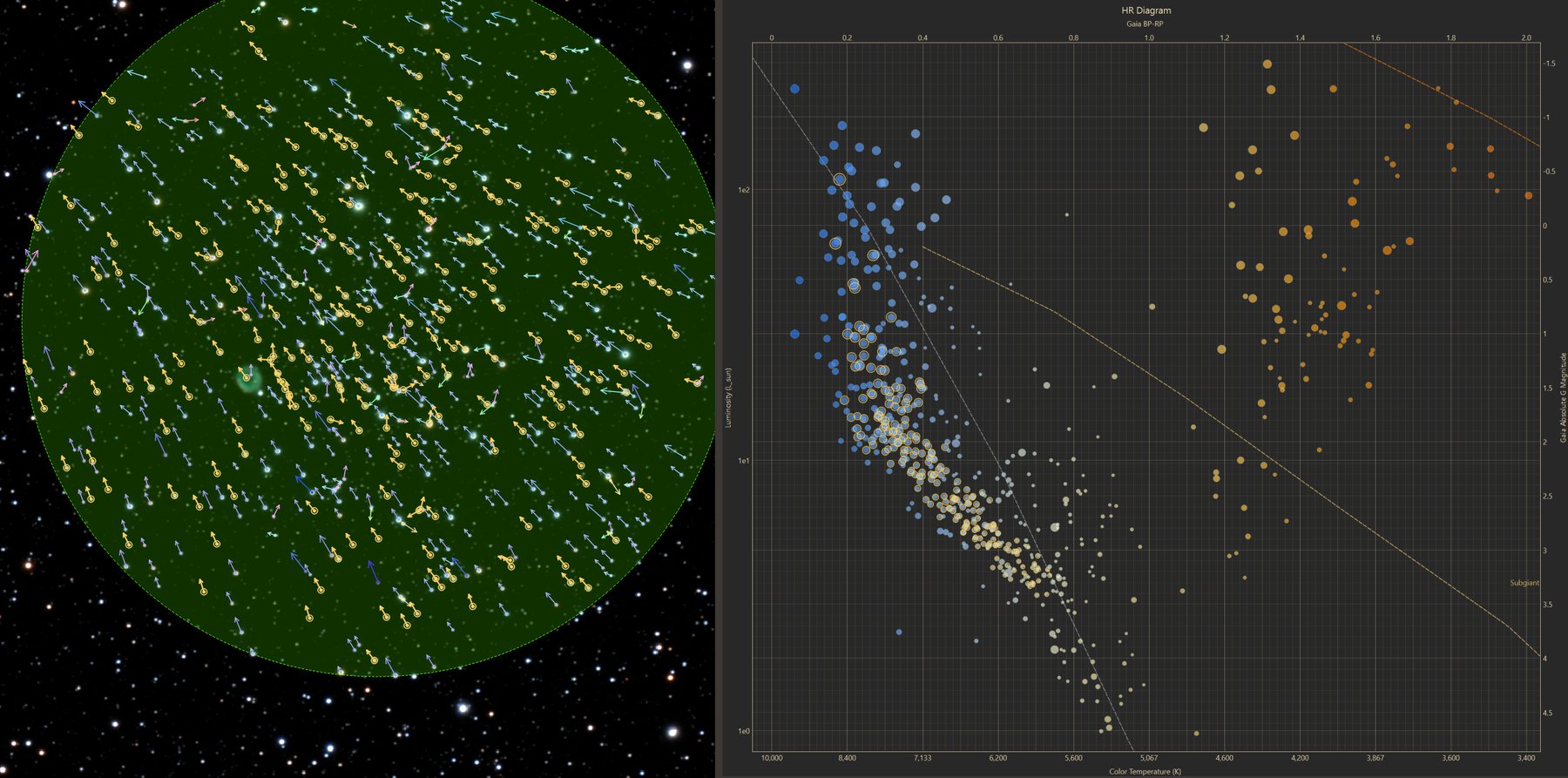
Other tools can draw an HR diagram. CAst keeps the photograph and the diagram linked. Click a star on the image and it lights up on the plot. An info card opens immediately.
Want to learn more? Open CDS, SIMBAD, or Gaia from that same star.
Complete tutorial
From one solved image to an HR diagram you can explore.
The steps follow the order you use the mode: open an image, read the diagram, inspect stars, focus on a region, look for a co-moving group, and export. Settings and the calculations behind the plot are in the Reference part at the end.
What this mode does
HR Diagram mode takes one plate-solved image, finds the stars in it, matches them to Gaia DR3, and plots them by color and absolute brightness. The photograph, the diagram, and a results table stay linked, so a star you pick in one place is selected in all three.
- Build the diagram from your image. Opening a solved image runs detection, Gaia matching, and aperture photometry, then draws the diagram. Step 4
- Read temperature and luminosity. The default view adds color temperature in kelvin and luminosity in solar units next to the Gaia axes. Step 7
- Inspect any star. Click a point or double-click a star on the image to get an info card with SIMBAD type and spectral type, then open CDS, SIMBAD, or Gaia pages. Step 9
- Compare with stellar classes. Overlay class guides and an age guide on the diagram. Step 13
- Focus on part of the field. Draw a circle or rectangle on the image and plot only the stars inside or outside it. Step 14
- See motion and find co-moving stars. Draw Gaia proper-motion vectors and search for a group of stars that move together. Step 16
- Export figures and tables. Save the plot as shown, a white-background scientific plot, the annotated image, or a bundle with a CSV table. Step 18
Before you begin
- Images
- One image of a star field. A linear, color-calibrated RGB FITS or XISF file gives the best measurements. TIFF, PNG, JPEG, and camera RAW files are also accepted. A monochrome image works, but without an instrumental color.
- Plate solving
- The image needs a valid celestial WCS. If it has none, CAst tries to recover one, using astrometry.net when an Astrometry API Key is set in Settings > Open Settings > General. PNG, JPEG, TIFF, and RAW files always need this recovered solve.
- Internet
- Gaia DR3 is downloaded from VizieR for every field, and SIMBAD is queried for star names, types, and spectral types.
- Good targets
- Open clusters, globular clusters, and rich Milky Way fields. Stars need Gaia parallaxes to appear on the default absolute-magnitude axis.
Step by step
Use the mode
Follow the steps in order the first time. Steps 7 to 18 can be used in any order once the diagram is on screen.
Open the mode
- On the launcher, click HR Diagram. If CAst is already open, choose Mode > HR Diagram, or Mode > Choose Mode... to return to the launcher.
- Read the HR Diagram prerequisites message and click OK.
The prerequisites message appears each time you enter the mode. Check Don't show again for this version to hide it until the next CAst update.
Open an image
- Click Open at the top left, or choose File > Open File (Ctrl + O).
- In Select solved RGB source image, choose your file.
- Wait while Open reads Generating.... The progress bar in the footer shows the current stage.
Opening an image starts the whole measurement. There is no separate generate button. CAst:
- Reads the image WCS. If it is missing or unusable, the Work Log says "Embedded WCS was unusable; recovering a plate solution." and CAst runs astrometry.net (when a key is set) and a local Gaia match at the same time, keeping the first success. The local match needs the center RA/Dec, focal length, and pixel size in the file metadata.
- Downloads Gaia DR3 stars for the field down to G = 18 by default. Wide fields are split into tiles so the whole frame is covered.
- Detects stars on your image and matches each detection to a Gaia star.
- Measures each matched star with aperture photometry and computes colors and absolute magnitudes.
- Writes the results to the working directory and draws the diagram and the Source Results table.
After the diagram appears, CAst keeps looking up names for brighter stars on SIMBAD in the background. As they arrive, names such as HD or BD designations replace Gaia IDs in the table, info card, and image labels.
Opening another image, or the same one again, clears the selection, manual plot changes, motion group, and region, then measures again from the start.
These files are normally stretched, and JPEG is lossy. The Gaia-based axes (Gaia BP-RP and Gaia Absolute G Magnitude) are unaffected because they come from the catalog. The values measured from your pixels (Calibrated, Abs Proxy, Instrumental Blue - Red, and SNR) are not linear measurements on such files. They also open with a Linear preview stretch instead of Auto Stretch.
If the measurement fails, CAst shows HR preparation failed. Click Results and read the last lines of the Work Log for the reason.
Working directory and limits
CAst writes its HR files to the working directory and uses that folder as the starting point for exports. Each time you open an image, the working directory is set to the image's folder.
- Click Results at the top left.
- Click Working Directory... and choose a folder.
The new folder is used for exports and for any later re-measurement. Files from the first run stay in the image folder.
How many stars are measured
HR Max Sources in Settings > Open Settings > HR Diagram sets how many matched stars are measured. The default is 5000; 0 measures all matched stars. When there are more matches than the limit, the brightest detections are kept. This is the main control on how long a run takes.
The Gaia download has its own limits: Gaia Max Mag (default 18.0) and Gaia Row Cap (default 35000), plus the tile settings described in Settings.
Changes to HR Max Sources and the Gaia settings do not change the current diagram. Open the image again to measure with the new values.
The workspace
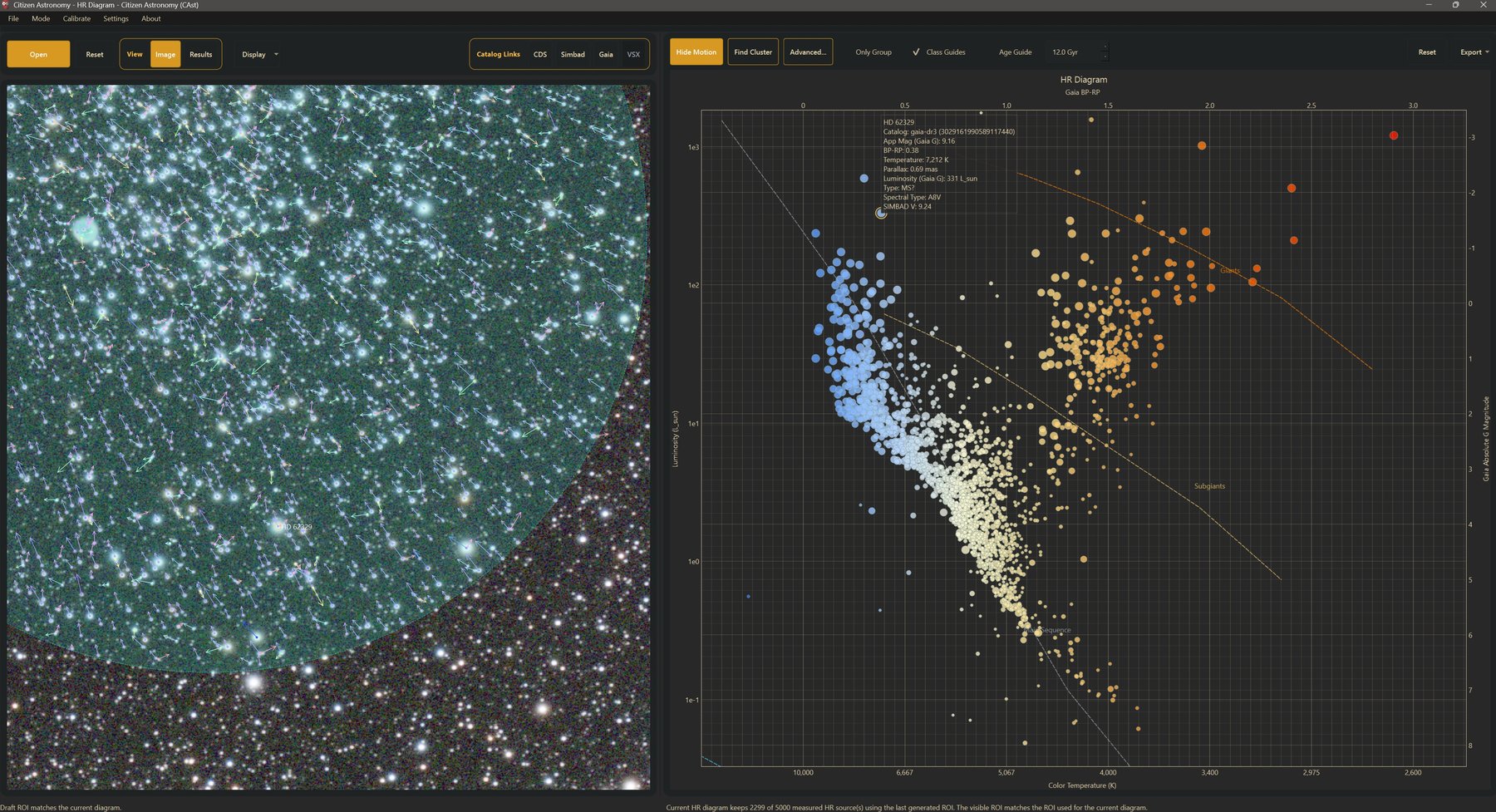
The left panel shows either the source image or the results. The right panel holds the diagram.
- Left toolbar
- Open, Update (or Reset), the Image and Results view buttons, the Display menu, and the Catalog Links buttons CDS, Simbad, Gaia, and VSX.
- Results view
- The source image path with Source Image..., the working directory with Working Directory..., the Source Results table, and the Work Log. Drag the dividers to resize them; CAst remembers the sizes.
- Plot toolbar
- Show Motion, Find Cluster, Advanced..., Only Group, Class Guides, Age Guide with its age box, Reset, and Export.
- Footer
- On the left: the region draft status, the progress bar, and short tips. On the right: how many measured stars the current diagram keeps.
Read the diagram
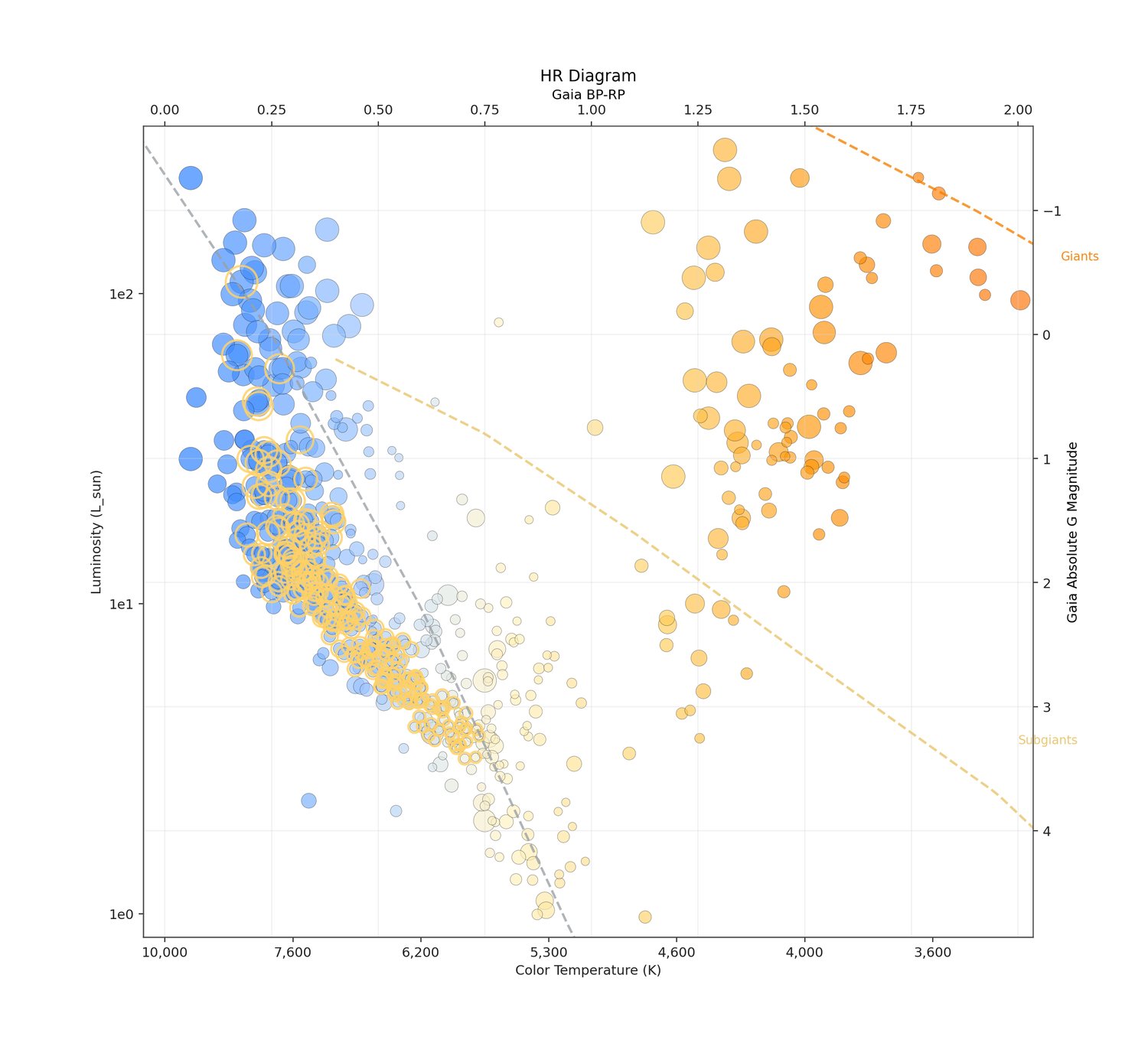
The diagram opens with Gaia BP-RP color across and Gaia Absolute G Magnitude up the side. Blue, hot stars sit on the left and red, cool stars on the right. Brighter stars are higher.
- The bottom axis shows Color Temperature (K), with Gaia BP-RP moved to the top.
- The left axis shows Luminosity (L_sun), with Gaia Absolute G Magnitude moved to the right.
- Point color follows Gaia BP-RP. Point size follows Gaia G apparent magnitude, so brighter stars draw larger.
In a typical field, most stars fall on the diagonal main sequence. Giants form a clump above and to the right. The temperature and luminosity scales are educational conversions; see Temperature and luminosity.
Drag the plot to pan and scroll to zoom. Click Reset on the plot toolbar to fit all points again. Double-click the plot title to rename it in Edit HR Diagram Title; exports use that title.
The plot shows at most 2000 points so it stays responsive. The same stars are picked every time, and a selected star is always shown. Scientific exports include every plottable star.
Source Results
Click Results to see the table of measured stars. The line under the table reads, for example, "Showing N matching HR row(s), with M currently plotted, from T total row(s)."
| Column | Meaning |
|---|---|
| Source | Star name, or the Gaia DR3 ID until a name is found |
| Catalog | The catalog of the match (gaia-dr3) |
| Gaia G | Gaia apparent G magnitude |
| BP-RP | Gaia color index |
| Proper Motion | Total Gaia proper motion in mas/yr |
| Calibrated | Your measured luminance magnitude, shifted onto Gaia G by the zero point |
| Abs Proxy | Absolute magnitude from the Calibrated value and Gaia parallax |
| SNR | Signal-to-noise ratio of the luminance measurement |
| Zero Point | Yes if the star was used to compute the zero point |
| Flags | Measurement warnings, such as saturation or a large match offset |
Click a column header to sort, and click again to reverse. Pinned stars stay at the top, then plotted stars, then the rest. Row tints show plot status: blue for plotted, green for added by hand, red for removed by hand, and gold for motion-group members. Hover a row to see its status.
The table lists up to 1000 rows by default (Table Row Limit). The selected star is always listed. The limit does not change what was measured.
The Work Log below the table records each stage of the run and ends with a summary: field center and radius, Gaia stars, VSX variables, exoplanet entries, measured and usable rows, and the zero point.
Select a star
There are three ways to select a star, and each one selects it everywhere.
- On the diagram: click a point. The star is selected in the table, circled on the image, the image centers on it, and the info card opens.
- On the image: double-click a star. CAst picks the nearest measured star and does the same.
- In the table: click a row. The star is highlighted on the diagram and centered on the image. Select several rows with Ctrl or Shift to circle a group; the image zooms out to frame it.
Click an empty part of the diagram to clear the selection.
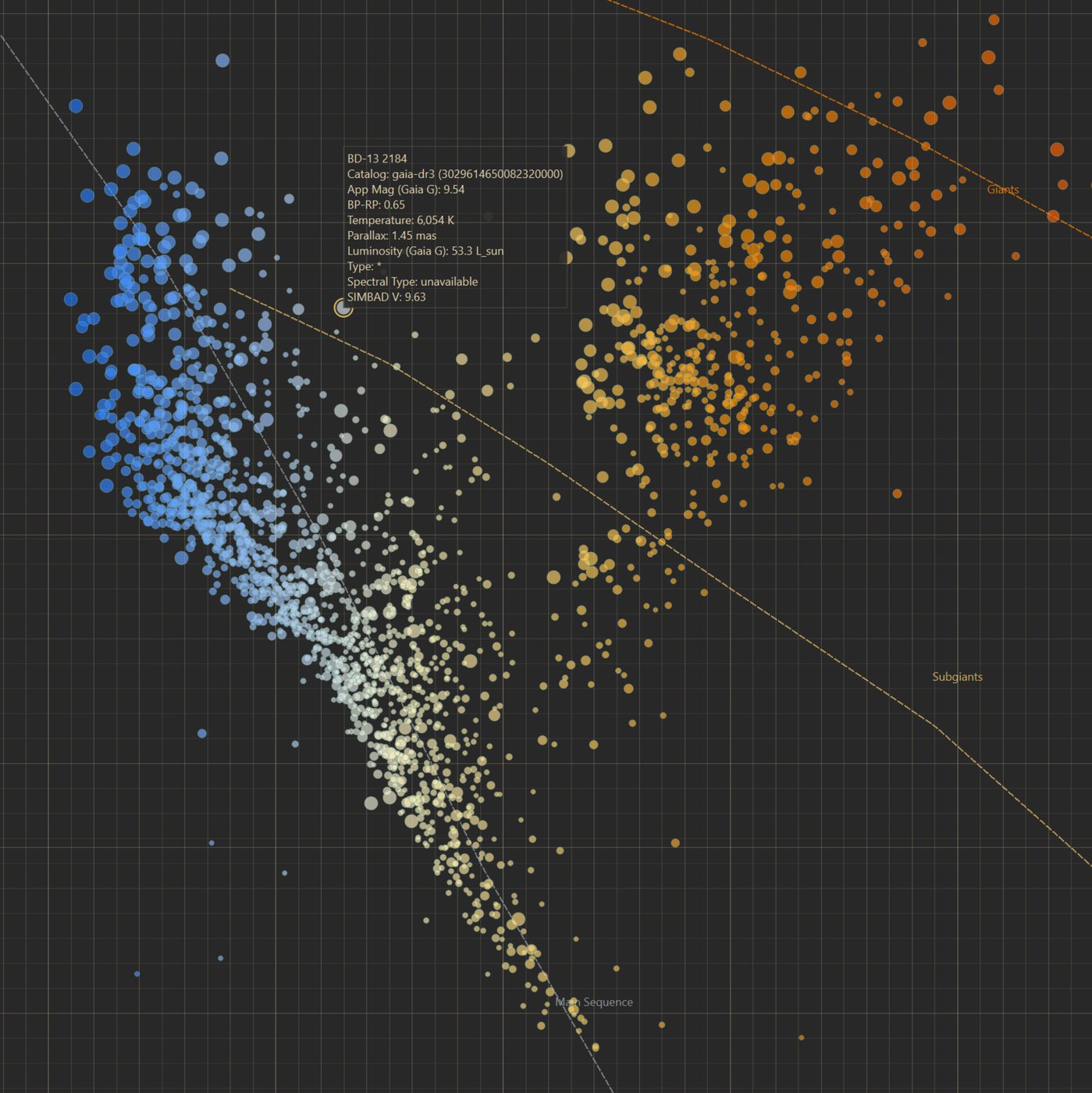
The info card
The card lists the name, catalog and Gaia DR3 ID, App Mag (Gaia G), BP-RP, Temperature, Parallax, and Luminosity. CAst then asks SIMBAD for the object within 2 arcseconds and fills in Type and Spectral Type, which reads "loading..." while it waits and "unavailable" if SIMBAD has none. SIMBAD V is added when it differs from Gaia G by more than 0.05 mag. Lookups are cached, so selecting the star again is instant.
The info card opens only for stars that are on the diagram. Selecting a row in the table does not open it; click the point instead.
Catalog links
With a star selected, the Catalog Links buttons open its page in your browser. They use the best identifier CAst has, such as the SIMBAD name, and fall back to coordinates.
- CDS
- Opens the VizieR lookup for the identifier, or the CDS Portal at the star's coordinates.
- Simbad
- Opens the SIMBAD page for the identifier, or a 2 arcsecond coordinate search.
- Gaia
- Copies the Gaia DR3 source ID to the clipboard and opens a page for it: SIMBAD when a name is known, otherwise VizieR.
- VSX
- Opens a VSX page for stars from the VSX catalog. Diagram stars are Gaia DR3 matches, so this button usually stays disabled.
To check which catalogued variables, galaxies, or other objects are in your field, open the same image in Sky Explorer.
Image annotations and Display
Click Image to see the source image. Drag to pan and scroll to zoom. Selected stars get a circle the size of their measurement aperture, with a name label when four or fewer are selected. Motion-group members are outlined as well.
The Display menu changes how the image looks. None of these settings change the measurements.
- Stretch
- Auto Stretch, Linear, Asinh, Sqrt, or Log.
FITS and XISF open with Auto Stretch; JPEG, PNG, and other 8-bit images open with Linear.
- Curves
- Opens the Curves dialog. Drag the points to reshape the tone curve, click the graph to add a point, right-click a point to remove it, then click Apply.
- Reset
- Clears the curves, the zoom, and any draft region.
- Show RA/Dec
- Shows the sky coordinates under the cursor at the top left of the image.
Default: on.
- Show Grid
- Draws an RA/Dec grid. RA Density and Dec Density (2 to 12) set the spacing.
Default: off, density 5.
Axes and filters
Choose the axes in Settings > HR Diagram > Plot Axes. The diagram redraws immediately.
X Axis
Gaia BP-RP (default), Instrumental Blue - Red from your image, or Resolved Color Index, which uses Gaia BP-RP and falls back to your instrumental color.
Y Axis
Gaia Absolute G Magnitude (default), Measured Absolute Magnitude Proxy, Calibrated Luminance Magnitude, or Gaia G Magnitude.
The temperature axis appears only with Gaia BP-RP. The luminosity axis appears only with the two absolute-magnitude options.
Filters
- Require Parallax (in Settings > HR Diagram, default on) hides stars without a Gaia parallax.
- Hide Saturated (default on) and Hide Flagged (default off) are in Settings > Open Settings > HR Diagram.
- Apparent Mag Min and Max in the same tab limit the plot to a Gaia G range. The defaults, -5 to 30, include everything.
Comparing the Gaia axes with the measured ones is a quick check of your own photometry: on a linear image, Calibrated Luminance Magnitude should follow Gaia G closely.
Class and age guides
The guides appear when the axes are Gaia BP-RP and Gaia Absolute G Magnitude.
- Class Guides (on by default) draws dashed lines for Supergiants, Giants, Subgiants, Main Sequence, and White Dwarfs.
- Age Guide draws a curve for a population of one age. Check it, then set the age in the box beside it, from 0.1 to 13.5 Gyr (default 12.0). As the age grows, the turnoff from the main sequence moves redder and fainter.
The guides are drawn from fixed educational curves. They are not isochrones fitted to your cluster's metallicity, distance, or reddening.
Focus on a region
A region of interest (ROI) limits the diagram to stars inside a circle or rectangle on the image, such as a cluster core.
- Choose the shape in Settings > HR Diagram > Source Image > Tool: Circle ROI (default) or Rectangle ROI.
- Click Image. Hold Shift and drag on the image. A circle grows from where you press; a rectangle spans the drag. A new drag replaces the previous one.
- Click Update. The diagram now shows only stars inside the region.
Check Invert ROI in the same menu to keep the stars outside the region instead.
Once the applied region matches the drawing, Update turns into Reset. Click Reset to clear the region and Invert ROI and return to the full field. The footer shows whether the drawn region matches the diagram.
The whole field is always measured. A region only chooses which measured stars are plotted, so Update is fast and does not repeat the photometry.
Show Motion
Click Show Motion on the plot toolbar to draw a Gaia proper-motion arrow on each star that is on the diagram. The button then reads Hide Motion.
- Arrow direction comes from the image WCS, so it is correct even on a rotated frame.
- Arrow length is scaled to the fastest stars in the field, between 6 and 36 screen pixels. It shows relative motion, not a time span.
- Color and width are set by Motion Vector Color and Motion Vector Width. Color vectors by angle gives stars moving the same way the same hue. Scale vector saturation by magnitude makes slow stars paler.
Stars that share a common motion stand out as arrows pointing the same way. Step 16 finds them for you.
Find Cluster
Find Cluster looks for the largest group of stars with similar Gaia proper motion, and similar parallax when enough stars have one. It searches every measured star inside the applied region; the plot filters do not change its input.
- Optionally, draw and apply a region around the cluster (Step 14). This usually improves the result.
- Click Find Cluster. Group members are highlighted in gold on the diagram, in the table, and on the motion arrows. The Work Log reports how many were found.
- Check Only Group to show only the members on the diagram, in the table, and in the motion overlay.
- Click Find All (the same button) to clear the group and return to the full selection.
Advanced settings
Click Advanced... to open Motion Group Detection. Choose a Preset and click OK; the next search uses it.
- Default
- Balanced search. Uses parallax when enough stars have it, then removes members that sit far from the group on the diagram.
- Tight
- A narrower search that keeps the dense core.
- Loose
- A wider search on proper motion only, without the diagram cleanup. For sparse associations.
- Parallax Priority
- Requires a positive parallax for every member.
- Custom
- Selected automatically when you change an expert setting.
Show Expert Controls reveals Backend, Strictness (a higher value searches more loosely), Parallax (Auto, Require parallax, Proper motion only), and Apply HR consistency cleanup. Check Turn on Only Group automatically after detection to filter right after each search.
A shared motion makes stars likely cluster members, not confirmed ones. Field stars can share a motion by chance.
Manual plot control
Select one or more rows in Source Results and right-click to change what the diagram shows.
- Copy Name
- Copies the selected star names to the clipboard.
- Show Selected On Top
- Pins the selected rows to the top of the table.
- Add Selected To Plot
- Plots the rows even if the region or filters would hide them. They turn green.
- Remove Selected From Plot
- Hides the rows from the diagram. They turn red.
- Use ROI/Filters For Selected
- Returns the rows to normal region and filter rules.
- Clear Top Pins
- Unpins all pinned rows.
- Clear All Plot Overrides
- Undoes every manual add and remove.
Export
Click Export on the plot toolbar. Save dialogs start in the working directory, and default file names use the plot title and axes.
- Snapshot
- The diagram exactly as shown, with theme, zoom, and guides.
PNG, PDF, or SVG at three times screen resolution.
- Scientific
- A white-background plot of every plottable star at the current axis limits, with group members outlined and guides included when shown.
PNG, PDF, or SVG; 220 dpi, or 300 dpi for PDF.
- Image + Plot...
- The current image view and the diagram side by side.
PNG.
- Source Image...
- The current image view with its circles, arrows, and region.
PNG, JPEG, or BMP.
Export bundle
Choose File > Export, pick a folder, and enter an Export Name. CAst creates a folder with that name containing the annotated source image, a scientific diagram, and a CSV table of the plotted stars.
Reference
Controls and settings
Look things up here after you know the workflow.
Controls
- Open
- Chooses a source image and measures it. Reads Generating... while busy.
- Update / Reset
- Update applies the drawn region. It is enabled only when the drawing differs from the applied region. Reset clears the applied region.
- Image / Results
- Switches the left panel between the source image and the table and Work Log.
- Display
- Image stretch, Curves, Reset, RA/Dec readout, and grid.
- CDS, Simbad, Gaia, VSX
- Open the selected star in that catalog.
- Source Image...
- In the Results view. Same as Open.
- Working Directory...
- In the Results view. Sets the folder for exports and later re-measurement.
- Show Motion / Hide Motion
- Toggles proper-motion arrows on the image.
- Find Cluster / Find All
- Searches for a co-moving group, or clears it.
- Advanced...
- Opens Motion Group Detection.
- Only Group
- Shows only group members. Enabled after a group is found.
- Class Guides
- Toggles the stellar class lines.
Default: on.
- Age Guide
- Toggles the age curve and enables the age box.
0.1 to 13.5 Gyr, default 12.0.
- Reset (plot)
- Fits the diagram to all points.
- Export
- Snapshot, Scientific, Image + Plot..., Source Image....
Settings
Settings > HR Diagram is a menu panel that applies changes immediately. Settings > Open Settings has an HR Diagram tab with the defaults below; click Save to apply them. Some settings appear in both places.
Measurement and catalog
- HR Max Sources
- Maximum number of matched stars measured; 0 means all. Settings dialog only.
Default 5000, range 0 to 50000.
- Gaia Max Mag
- Faintest Gaia G magnitude downloaded.
Default 18.0.
- Gaia Row Cap
- Maximum Gaia rows downloaded for the field.
Default 35000, range 1000 to 100000.
- Tile Radius
- Radius of each Gaia query tile on wide fields.
Default 0.35°, range 0.10° to 2.0°.
- Tile Overlap
- Extra cone size around each tile so stars near tile edges are not missed.
Default 1.12×, range 1.00 to 1.50.
- Max Tiles
- Upper bound on the first tile grid for a wide field.
Default 64, range 4 to 256.
- Tile Split Depth
- How many times a tile that hits the row cap is split again; 0 keeps the truncated tile.
Default 2, range 0 to 4.
- Search catalog/designation names
- Looks up SIMBAD names for brighter stars after the diagram loads. Called Catalog Names in the Settings dialog.
Default: on.
- Name Search Mag
- Only stars brighter than this Gaia G magnitude get a name lookup.
Default 9.0.
Plot
- X Axis / Y Axis
- Plot axes, see Step 12. Settings menu only.
- Require Parallax
- Hides stars without a Gaia parallax.
Default: on.
- Hide Flagged
- Hides stars with any measurement flag. Settings dialog only.
Default: off.
- Hide Saturated
- Hides saturated stars. Settings dialog only.
Default: on.
- Apparent Mag
- Gaia G range to plot. Settings dialog only.
Default -5 to 30.
- Table Row Limit
- Maximum rows listed in Source Results. Settings dialog only.
Default 1000, range 1 to 10000.
- Color Saturation
- Strength of the point colors.
Default 1.0, range 0 to 2.
- Opacity
- Point opacity.
Default 0.8, range 0.05 to 1.
- Data Point Size
- Scale points by Gaia G (5 to 14 px), or use a fixed size.
- Fixed Point Size
- Point size when fixed.
Default 8 px, range 2 to 24.
- Selected Circle Color, Opacity, Size
- Style of the selection circle on the diagram and image.
Default gold, 0.85, 1.35×.
Source image
- Tool
- Circle ROI or Rectangle ROI. Settings menu only.
Default: Circle ROI.
- Invert ROI
- Keeps stars outside the region. Settings menu only.
Default: off.
- ROI Drag Color / ROI Defined Color
- Region color while dragging and once drawn. Settings menu only.
Default orange and teal.
- Motion Vector Color / Width
- Arrow color and width.
Default blue, 1.5 px, range 0.5 to 8.
- Color vectors by angle
- Colors arrows by direction. Settings menu only.
Default: off.
- Scale vector saturation by magnitude
- Makes slower stars' arrows paler. Settings menu only.
Default: off.
The aperture and annulus radii, Frame Edge Margin, and Saturation Filter are shared with other modes. If you change them, the next Update measures the field again.
Mouse and keyboard
Source image
- Drag: pan
- Scroll: zoom
- Shift + drag: draw a region
- Double-click a star: select it
Diagram
- Click a point: select it and open the info card
- Click empty space: clear the selection
- Drag: pan
- Scroll: zoom
- Double-click the title: rename the diagram
Source Results
- Click a row: select the star
- Ctrl or Shift + click: select several rows
- Click a header: sort
- Right-click: plot and pin options
Anywhere
- Ctrl + O: open an image
Files written
| File | When | Contents |
|---|---|---|
| hr_field_catalog.json | Every run | Field center, radius, and size, plus the Gaia, VSX, and exoplanet entries for the field |
| hr_working_table.json | Every run | The full measurement table that Update reuses |
| hr_working_table.csv | Every run | One row per measured star: Gaia values, image position, fluxes, magnitudes, zero-point use, and flags |
| <name>/<name>_source_image.png | File > Export | Annotated source image |
| <name>/<name>_hr_diagram.png | File > Export | Scientific diagram |
| <name>/<name>_science_table.csv | File > Export | The stars in the scientific diagram |
The three run files go to the working directory. Export files go where you choose.
How the measurements work
Detection
CAst averages the red, green, and blue channels into a luminance image and finds stars with DAOStarFinder: a sigma-clipped background, a threshold of 5 times the background noise, and an assumed star width of 0.8 times the aperture radius (2 to 8 pixels). Stars near the frame edge are skipped. Detections are sorted brightest first.
Gaia matching
Each detection is converted to sky coordinates with the WCS and matched to the nearest Gaia star. The match radius is between 1.5 and 6 arcseconds, from 2.5 pixels times the pixel scale or the aperture radius, whichever is larger. If several detections match one Gaia star, the closest wins. Matches more than 2 arcseconds off are kept but flagged. HR Max Sources then keeps the brightest matches.
Photometry
Each star is measured in a circular aperture in red, green, blue, and luminance. The sky level is the sigma-clipped median in a surrounding annulus, subtracted per pixel. The instrumental magnitude is m = −2.5 log10(F). Instrumental Blue - Red is mB − mR. Stars with non-positive flux, near-saturation, or saturation are flagged.
Zero point
The zero point is the median of (Gaia G − mlum) over unsaturated stars with positive flux. Calibrated = mlum + zero point. This places your measurements on the Gaia G scale; it is not a full standard-system transformation.
Absolute magnitude
For a positive parallax ϖ in milliarcseconds, M = m + 5 log10(ϖ) − 10. Gaia Absolute G Magnitude uses Gaia G as m. Measured Absolute Magnitude Proxy uses your Calibrated magnitude.
No extinction or reddening correction is applied. In dusty fields, stars plot fainter and redder than they are. Parallaxes are inverted directly, so stars with small or uncertain parallaxes can land far from their true position.
Temperature and luminosity
Temperature is interpolated linearly between these BP-RP anchors. Colors beyond the ends use the end values.
| BP-RP | Temperature (K) |
|---|---|
| −0.4 | 30,000 |
| 0.0 | 10,000 |
| 0.3 | 7,600 |
| 0.6 | 6,200 |
| 0.9 | 5,300 |
| 1.2 | 4,600 |
| 1.5 | 4,000 |
| 1.8 | 3,600 |
| 2.2 | 3,200 |
| 2.6 | 2,900 |
| 3.0 | 2,600 |
Luminosity in solar units is L/L☉ = 10(4.67 − MG)/2.5, where 4.67 is the Sun's absolute G magnitude. Both scales are approximations for teaching, not results of a stellar-atmosphere model.
How Find Cluster works
- Take the measured stars inside the applied region that have Gaia proper motion in RA and Dec. At least 5 are needed.
- Add parallax as a third value when the Parallax setting asks for it. On Auto, parallax is used when at least 6 stars, and at least 35% of them, have a positive parallax.
- Normalize each value by subtracting its median and dividing by 1.4826 times its median absolute deviation.
- Run DBSCAN. The minimum group size is the square root of the star count, kept between 5 and 12. The neighborhood size comes from the 30th percentile of neighbor distances, multiplied by 1.25 and the Strictness, and kept between 0.25 and 2.4. On Auto, CAst uses scikit-learn for 180 or more stars and a built-in version below that.
- Keep the largest group, if it reaches the minimum size.
- With the HR cleanup on, remove members that sit far from their neighbors on the BP-RP versus absolute magnitude diagram. The cleanup is kept only if at least 4 members, and 60% of the group, remain.
| Preset | Strictness | Parallax | HR cleanup |
|---|---|---|---|
| Default | 1.0 | Auto | On |
| Tight | 0.8 | Auto | On |
| Loose | 1.35 | Proper motion only | Off |
| Parallax Priority | 0.95 | Require parallax | On |
| Custom | 0.4 to 2.5 | Any | Any |
Troubleshooting
The Work Log says the embedded WCS was unusable and solving fails
CAst could not recover a plate solution. Add an Astrometry API Key in Settings > Open Settings > General and open the image again, or plate-solve the image in other software and open the solved FITS or XISF file.
I see "HR preparation failed"
Click Results and read the last Work Log lines. Common causes are no internet connection for Gaia or a failed plate solve.
The measured values on my JPEG look wrong
JPEG and PNG files are usually stretched, so Calibrated, Abs Proxy, and the instrumental color are not linear measurements. The Gaia axes are still correct. Use a linear FITS or XISF file for your own photometry.
Update is greyed out
Update is enabled only when you have drawn a region that differs from the applied one. Hold Shift and drag on the image first.
I changed HR Max Sources or Gaia Max Mag and nothing happened
These settings apply to the next measurement. Click Open and choose the image again.
The diagram shows fewer stars than were measured
A region, manual removals, Require Parallax, Hide Saturated, Hide Flagged, the Apparent Mag range, or the 2000-point display limit can each hide stars. The footer and the line under the table show how many are plotted.
The class guides and temperature axis disappeared
They appear only with Gaia BP-RP on the X axis and an absolute magnitude on the Y axis (the guides need Gaia Absolute G Magnitude). Change the axes in Settings > HR Diagram.
No info card opens
The card opens when you click a point on the diagram or double-click a star on the image, and only for stars that are plotted. Selecting a table row does not open it.
Find Cluster says "No cluster found"
Draw and apply a region around the cluster, then try again. You can also try the Loose preset in Advanced.... At least 5 stars with Gaia proper motion are needed.
The VSX button never turns on
Diagram stars are Gaia DR3 matches, and VSX opens only for VSX catalog stars. Use Sky Explorer to see the known variables in your field.
The image looks different but the numbers did not change
That is expected. Stretch, Curves, and the grid change only the preview. Measurements always use the original image data.