Sky Atlas Mode
Explore the sky around your target.
Search the catalogs, set your site and time, and lay your own sky-registered images on an interactive all-sky map.
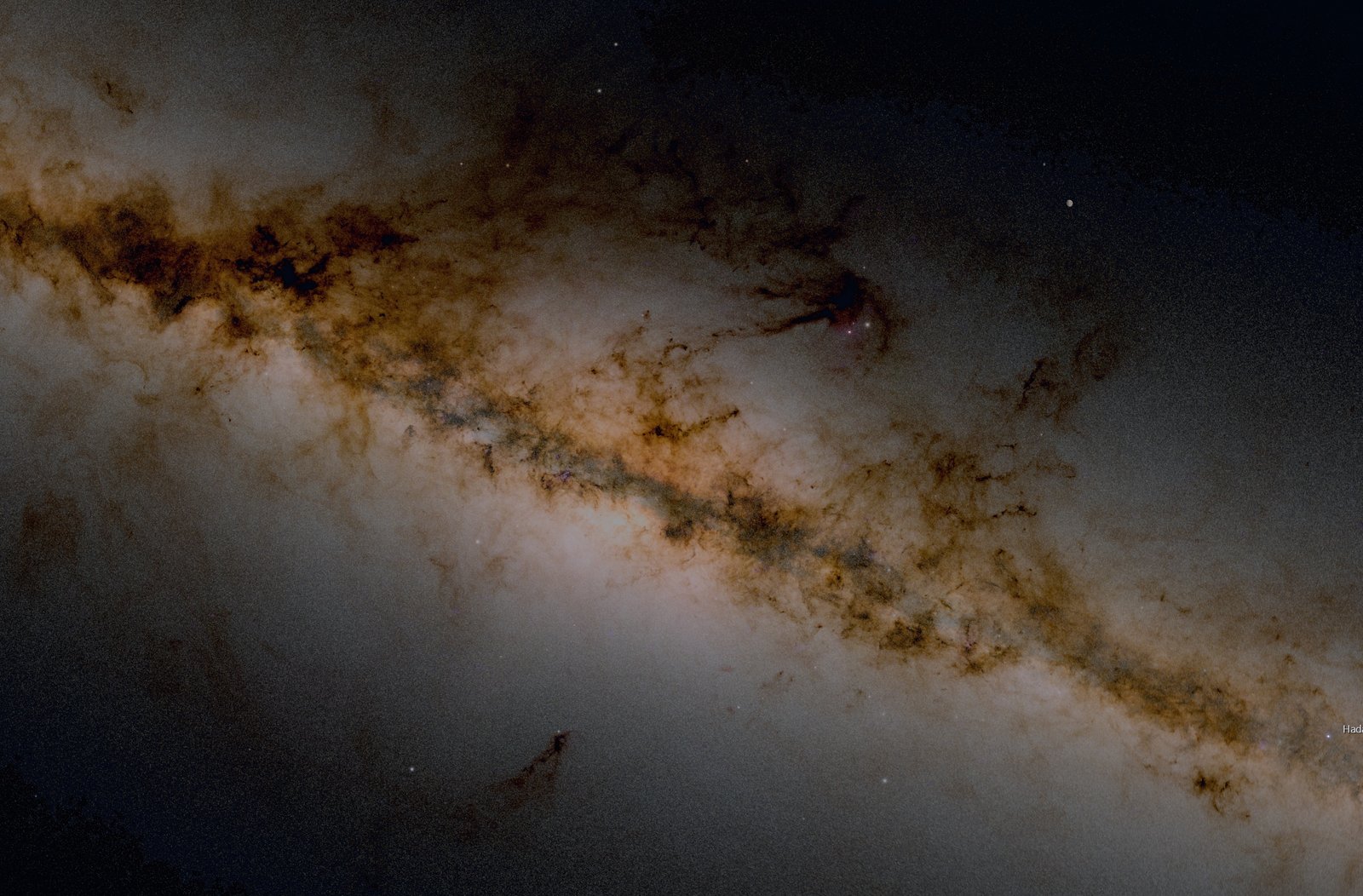
What a sky atlas is
The whole sky, for your site and time.
A sky atlas shows where stars, deep-sky objects, constellations, and the Moon sit on the sky. Sky Atlas draws them for your observing site and the UTC time you choose, from bright stars down to deeper catalogs that you download when you need them.
And you can lay your own images on it.
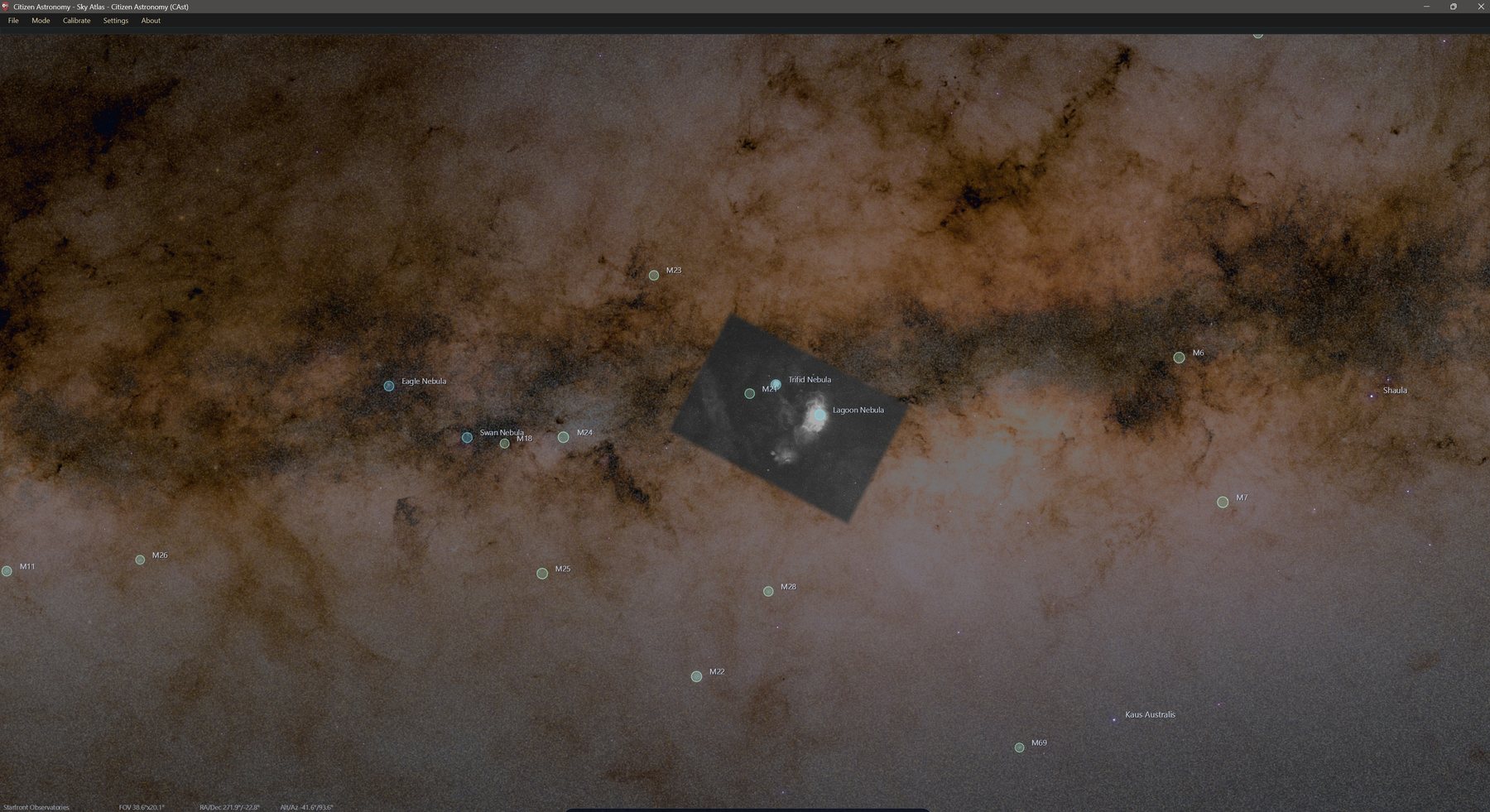
Your images as surveys
Put your own images on the sky.
Import a sky-registered image and Sky Atlas places it at its position on the sky as part of a custom survey. Blend it with the atlas, soften its edges, and switch between surveys built from your own data.
Hover over an object to see its name. Click it for details, and open SIMBAD, ADS, VizieR, or HASH from the same panel.
Complete tutorial
From opening the atlas to overlaying your own images.
The steps follow the order you would use the first time: move around, find a target, set your site and time, add layers and catalogs, then add your own images. Every control and setting is listed in the Reference part at the end.
What this mode does
Sky Atlas is an interactive map of the whole sky. It does not need an image. You pan and zoom like a planetarium, search for objects, and click them to see where they are from your site at the time you choose. You can also import your own plate-solved images and see them in place on the map.
- Pan and zoom the whole sky. Drag to move and scroll to zoom from 360° down to 2°, or closer on the Moon. Step 04
- Search every downloaded catalog. One search window covers named stars, Messier, NGC, IC, nebula catalogs, HASH planetary nebulae, and the Moon, including catalogs you have hidden. Step 05
- Pin object details. Click an object to see its RA, Dec, altitude, azimuth, constellation, and links to SIMBAD, ADS, VizieR, and HASH. Step 06
- Set your site. Pick your observing location on a world map and save it for next time. Step 07
- Control time. Set the UTC time, step by hours or days, or pause the sky. Step 08
- Add reference layers. Equatorial grid, alt-az grid, constellations, and the ground and horizon. Step 09
- Go deeper. Show stars down to magnitude 15 from Hipparcos, Tycho-2, or Gaia DR3, and switch on up to ten deep-sky catalogs. Step 10
- Find the Moon. See the live Moon for your site and time, and zoom in close. Step 11
- Style the sky. Tune the Milky Way background and constellation lines and labels. Step 12
- Overlay your own images. Group your sky-registered images into named surveys and show them on the atlas with opacity, brightness, and blending controls. Steps 13 and 14
Before you begin
- Images
- None are needed to use the atlas. To add custom overlays you need sky-registered PNG, XISF, TIFF, or FITS images.
- Plate solving
- Only needed for overlays. Images with a valid embedded WCS, or PNG/TIFF files with a matching FITS file next to them, import directly. Others are plate-solved during import; an astrometry.net API key in CAst's settings gives the solver another option.
- Internet
- Needed the first time you load star catalogs and deep-sky catalogs, and for the map and place names in the Observer Location dialog. The bright starting view and the Messier catalog are packaged with CAst.
- Disk space
- Small for the default depth. The deepest Gaia DR3 setting (magnitude 15.0) is estimated at about 4.8 GB.
- Graphics
- Stars and labels are drawn on the GPU. If GPU star rendering is unavailable, CAst switches to a slower compatibility renderer and says so in the status bar.
Step by step
Use Sky Atlas
Follow the steps in order the first time. Later you can jump straight to the one you need.
Open Sky Atlas
- On the launcher, click Sky Atlas (“Explore the sky and objects with an interactive all-sky map.”). If CAst is already open in another mode, choose Mode > Sky Atlas.
- The atlas fills the window, centered on Orion with a 60° field. Stars down to about magnitude 5 are shown.
- Move the pointer to the bottom edge of the window. A dock of icon buttons slides up. Move the pointer away and it slides back down.
Hover over a dock button to see its name. From left to right they are Search the sky, Date and time, Pause time, Observer location, Toggle equatorial grid, Toggle alt-az grid, Toggle constellations, Toggle ground and horizon, Custom sky map overlays, Sky Atlas settings, Sky View options, and Toggle full screen. The full list is in R1.
The footer along the bottom of the atlas shows your observer site, the field of view, and the RA/Dec and Alt/Az of the centre of the view.
Click Toggle full screen for an uncluttered view. Click it again to return to a normal window.
Search for a target
- In the dock, click Search the sky. A centered window titled Search the sky opens with the note “Every catalog is included, even layers you have turned off.”
- Type a name, catalog ID, or alias, for example
M31,Vega,NGC 7000, orStDr 1. - While CAst looks, the status line reads Searching…. Then it shows the number of matches, most relevant first.
- Each row starts with the object type, such as
Galaxy Andromeda Galaxy. The second line shows the catalog, the magnitude, and the constellation. - Click a result, or press Enter to go to the highlighted one.
- Enter: go to the highlighted result
- ↓ or ↑: move from the search box into the result list
- Esc: close the search window
The atlas glides to the object, selects it, and pins its details in the panel at the top left. If the object belongs to a catalog you have switched off, it is still marked and pinned so you can look at it.
Search covers packaged targets and every catalog already on your disk. It never downloads anything. A catalog you have never switched on, such as HASH PN or Sharpless, is not searchable until you enable it once in Step 10. The list shows up to 60 results; unnamed catalog stars are left out.
Inspect an object
- Click a star or a deep-sky marker, or choose a search result.
- Read the panel at the top left. It shows the name and magnitude, up to four alternate names, the object type, and the RA, Dec, Alt, Az, and Constellation rows.
- Click a literature link to open it in your browser: SIMBAD for the object record, ADS for papers sorted by citation count, VizieR for catalog entries, and HASH for HASH planetary nebulae (catalogue V/163 in VizieR).
Alt and Az depend on your site and time, so set those in Step 07 and Step 08. They update while the clock runs. Click an empty part of the sky to clear the selection; the panel hides when nothing is selected.
When you use Sky Atlas to check whether a nebula is already known, an unmarked spot only means that none of the catalogs you have switched on lists an object there. Switch on more catalogs, check SIMBAD and VizieR from the links, and compare your own image in Sky Explorer before treating anything as new.
Set your observing site
- In the dock, click Observer location. The Observer Location dialog opens with a world map on the left.
- Drag the map to your area. Scroll, or click + and -, to zoom.
- Click your site. A marker appears with its coordinates, and Latitude and Longitude fill in.
- Type your Elevation in metres.
- Check Name. CAst fills in a place name from the clicked coordinates. Type your own name if you prefer.
- Leave Keep this site in quick-switch presets checked to keep the site in Saved Sites.
- Click Save Location.
The footer now shows your site name, and Alt/Az values, the horizon, and the Moon use the new location. CAst remembers the site the next time you open Sky Atlas.
Type exact coordinates
Instead of clicking the map, type Latitude and Longitude in degrees. The marker moves to match.
Switch to a saved site
Choose a site from Saved Sites, click Load, then click Save Location. Remove deletes the selected saved site.
All controls of this dialog are listed in R5.
Set the date and time
- In the dock, click Date and time. A popup opens with a UTC date and time box.
- Type a date and time, or click the box's arrow to pick a date from the calendar. All times are UTC.
- Or step the time with -1 d, -1 h, +1 h, and +1 d. Click Now to return to the current time.
- Click outside the popup to close it.
The sky clock runs in real time when Sky Atlas opens, so stars rise and set as they would outside. To freeze the sky, click Pause time in the dock. The button then reads Play time; click it to let the sky move again.
To see when a target clears your horizon, pause time, turn on Toggle ground and horizon, search for the target, and step with +1 h.
Turn on grids and constellations
Each of these dock buttons switches one layer on or off. A highlighted button means the layer is on. All four start off.
- Click Toggle equatorial grid for RA/Dec lines.
- Click Toggle alt-az grid for altitude and azimuth lines around your horizon.
- Click Toggle constellations for constellation lines and names.
- Click Toggle ground and horizon to draw the ground below the horizon for your site.
To change the color, width, and opacity of constellation lines and labels, see Step 12.
These layer buttons and the Sky View options return to their defaults when you restart CAst. Your site, Sky Atlas Settings, and custom surveys are saved.
Show fainter stars and more catalogs
- In the dock, click Sky Atlas settings. The Sky Atlas Settings dialog opens on the Stars page.
- Drag Limiting magnitude to the faintest stars you want, up to 15.0. The Star catalog download box below shows which catalog that needs, about how many stars, and the download size.
- Click Deep-Sky Objects in the list on the left.
- Under Catalogs to show, check the catalogs you want, for example Barnard and Sharpless for dark and bright nebulae.
- Under Visibility, set Object limiting magnitude and Label limiting magnitude if you want more or fewer markers and names.
- Click OK.
The atlas previews star and object changes while the dialog is open. After OK, if catalog data is missing, a banner with a progress bar and a Cancel button appears at the top of the atlas. You can keep exploring; the sky refreshes when the new catalog is ready.
| Limiting magnitude | Catalog | Estimated stars | Estimated download |
|---|---|---|---|
| 9.5 | Hipparcos | 99k | 12 MB |
| 12.5 | Tycho-2 | 1.8M | 240 MB |
| 15.0 | Gaia DR3 | 35M | 4.8 GB |
If you click Cancel on the banner, or quit CAst during a download, Sky Atlas keeps the last magnitude that worked. A finished download keeps the new magnitude the next time you open Sky Atlas.
Every control on both pages, with ranges and defaults, is in R2.
Find the Moon
- Make sure your site and time are set (Step 07 and Step 08).
- Click Search the sky and type
Moon.LunaandEarth's Moonalso work. - Press Enter. The atlas centers on the Moon and pins it.
- Scroll to zoom in. With the Moon selected or centered, you can zoom to a field about 0.24° wide.
The Moon's position is computed for your site and time (topocentric), so it shifts against the stars as you change either. The magnitude in the panel is estimated from the lit fraction of the disc.
Change how the sky looks
- In the dock, click Sky View options.
- To change the Milky Way background, choose a Preset: Atlas, Dark sky, or Source-like. Fine-tune with Opacity, Exposure, and the tone sliders.
- To hide the Milky Way, uncheck Milky Way.
- To style constellations, check Constellations, then choose Lines, Labels, a Color, and the width, opacity, and size sliders.
- Click outside the popup to close it.
Star brightness, size, and twinkling are on the Stars page of Sky Atlas Settings, not here. Every control in this popup is listed in R3.
Create a custom survey
A custom survey is a named group of your own sky-registered images, for example all your H-alpha frames. CAst places each image on the atlas using its WCS.
- In the dock, click Custom sky map overlays. The Custom Sky Map popup opens.
- Click Edit Surveys. The Custom Sky Map Surveys dialog opens.
- Click New Survey. A survey named
Survey 1appears in the Surveys list. - Type a Name. Optionally choose or type a Filter, such as Ha, OIII, or Luminance.
- Click Add Image... and choose a PNG, XISF, TIFF, or FITS file.
- Wait while CAst reads the WCS or plate-solves the image. The image then appears in the Images list.
- Repeat Add Image... for each image. Each click imports one file.
- Click OK.
How CAst places the image:
- If the file has a valid embedded WCS, CAst uses it.
- For PNG and TIFF, CAst first looks for a FITS file with the same base name in the same folder (
.fits,.fit,.fts, or.fz) and uses its WCS. - Otherwise CAst plate-solves the image, using Gaia matching seeded from the image metadata or astrometry.net.
If no usable WCS can be found or solved, CAst shows Custom overlay failed with the reason. Solve the image in your stacking software and save it with its WCS, or put the solved FITS file next to your PNG or TIFF, then try again.
To change a survey later, open Edit Surveys again. Remove Selected removes the selected image, and Delete Survey removes the whole survey after a confirmation.
Show and tune a survey
- In the dock, click Custom sky map overlays.
- Choose your survey from the Survey dropdown. CAst turns on Show custom sky overlays and draws the survey's images.
- Search for an object inside your image, or pan to it, to see the overlay in place.
- Adjust Opacity to blend the image with the atlas, and Brightness and Saturation to match the background.
- If the image has a black frame, check Treat black as alpha to make black and near-black pixels transparent, and raise Feather to soften the edges.
- Uncheck Show custom sky overlays to hide the overlay without deleting it.
Surveys are saved in a survey folder next to the program, one subfolder per survey. To share a survey, copy its subfolder into the other computer's survey folder.
Reference
Controls and settings
Look things up here after you know the workflow.
Dock, footer, and mouse
The dock appears when the pointer is near the bottom edge of the atlas, and stays while one of its popups is open.
- Search the sky
- Opens the search window.
See Step 05.
- Date and time
- Opens the UTC time popup with -1 d, -1 h, Now, +1 h, and +1 d.
- Pause time / Play time
- Freezes or resumes the sky clock.
Default: running.
- Observer location
- Opens the Observer Location dialog.
See R5.
- Toggle equatorial grid
- RA/Dec grid.
Default: off.
- Toggle alt-az grid
- Altitude/azimuth grid.
Default: off.
- Toggle constellations
- Constellation lines and names. Same as the Constellations checkbox in Sky View options.
Default: off.
- Toggle ground and horizon
- Ground and horizon for your site.
Default: off.
- Custom sky map overlays
- Opens the Custom Sky Map popup.
See R4.
- Sky Atlas settings
- Opens Sky Atlas Settings.
See R2.
- Sky View options
- Opens the Milky Way, constellation, and Reset View popup.
See R3.
- Toggle full screen
- Switches the CAst window in and out of full screen.
Footer
From left to right: the observer site name (Not set if no site is saved), the field of view as width × height in degrees, the RA/Dec of the view centre, and the Alt/Az of the view centre.
Mouse
- Drag: pan
- Scroll: zoom, 360° to 2° (about 0.24° on the Moon)
- Hover: highlight and label
- Click: select and pin details
- Double-click: center on the object
Sky Atlas Settings
Opened from Sky Atlas settings in the dock. Changes preview on the atlas as you move them. OK saves and starts any needed download, Cancel reverts, and Restore Defaults resets every control in the dialog.
Stars page
| Control | Range | Default | Meaning |
|---|---|---|---|
| Limiting magnitude | 3.0–15.0 | 8.7 | Faintest stars drawn when zoomed in |
| Star brightness | 0.35x–2.00x | 1.00x | Overall glow intensity |
| Star size | 0.40x–2.50x | 1.00x | Base disc size for all stars |
| Magnitude size contrast | 0.00x–2.00x | 1.00x | How strongly fainter stars shrink |
| Twinkling | 0–100% | 50% | Atmospheric scintillation amount |
The Star catalog download box shows the catalog, star count, and size estimate for the chosen magnitude, and the folder after Saved under:.
Deep-Sky Objects page
- Catalogs to show
- One checkbox per catalog: Messier, NGC, IC, VdB, LDN, LBN, Barnard, Sharpless, RCW, HASH PN.
Default: Messier and NGC on.
- Object limiting magnitude
- Marks objects brighter than this limit.
Range 1.0–16.0, default 10.0.
- Label limiting magnitude
- Shows names only for objects brighter than this.
Range 1.0–16.0, default 8.0.
Dense catalogs (HASH PN, LDN, LBN, Barnard, Sharpless, RCW) show labels only when you zoom in: named objects below about a 28° field, unnamed ones below about 10°.
Sky View options
Opened from Sky View options in the dock. These settings return to their defaults when CAst restarts.
- Max mag
- Shows the current star limiting magnitude. Change the limit in Sky Atlas Settings.
- Reset View
- Glides back to the opening 60° Orion field.
Milky Way
| Control | Options or range | Default |
|---|---|---|
| Milky Way | On / off | On |
| Resolution (beside the checkbox) | Off, Low (4k), Medium (8k), High (32k tiles) | High |
| Mode | Basic Milky Way, Advanced Milky Way (16k), High Detail Milky Way (32k), Fully Milky Way | Fully Milky Way |
| Opacity | 0–80% | 65% |
| Exposure | 0.35x–1.80x | 1.30x |
| Preset | Atlas, Dark sky, Source-like, Custom | Atlas |
| Contrast | 0.60x–2.20x | 1.35x |
| Saturation | 0.00x–2.40x | 2.00x |
| Black point | 0.00–0.25 | 0.00 |
| Gamma | 0.60x–1.80x | 1.05x |
| Flip texture | On / off | Off |
Choosing a Preset sets Exposure, Contrast, Saturation, Black point, and Gamma together. Moving one of those sliders switches the preset to Custom. Setting the resolution to Off hides the Milky Way.
Constellations
| Control | Options or range | Default |
|---|---|---|
| Constellations | On / off | Off |
| Lines | On / off | On |
| Labels | On / off | On |
| Color | Blue-white, Gray-white, Soft cyan, Warm amber | Blue-white |
| Line width | 0.5–3.0 px | 1.0 px |
| Line opacity | 0–100% | 42% |
| Label opacity | 0–100% | 72% |
| Label size | 8–20 pt | 11 pt |
Custom Sky Map
Custom Sky Map popup
These settings are saved between sessions.
- Show custom sky overlays
- Shows or hides the selected survey.
Default: off. Choosing a survey turns it on.
- Edit Surveys
- Opens the Custom Sky Map Surveys dialog.
- Survey
- The survey to display. Shows No surveys yet until you create one.
- Opacity
- How strongly the images cover the atlas.
0–100%, default 85%.
- Brightness
- Image brightness.
0.35x–2.00x, default 1.00x.
- Saturation
- Color strength.
0.00x–2.40x, default 1.00x.
- Feather
- Fades the image edges into the atlas.
0–100%, default 0%.
- Treat black as alpha
- Makes black and near-black pixels transparent so the overlay blends into the atlas sky.
Default: off.
Custom Sky Map Surveys dialog
- Surveys
- Your surveys, shown with their filter in brackets.
- New Survey
- Adds a survey named
Survey 1,Survey 2, and so on. - Delete Survey
- Deletes the selected survey. Asks first if it contains images.
- Name
- The survey name. Every survey needs one.
- Filter
- Optional. Choose Luminance, Clear, R, G, B, Ha, OIII, or SII, or type your own.
- Images
- The images in the selected survey. Hover to see the source file path.
- Add Image...
- Imports one PNG, XISF, TIFF, or FITS image.
- Remove Selected
- Removes the selected image from the survey.
- OK / Cancel
- OK saves your changes to the surveys; Cancel discards them.
Each imported image is cached in its survey folder as overlay.png, overlay.wcs.fits, and overlay.json, downscaled to a long edge of 2048 pixels. Each survey folder also has a survey.json manifest.
Observer Location dialog
- Map
- Drag to pan, scroll to zoom, click to place the marker. Needs an internet connection for the map tiles.
- - / +
- Zoom the map out or in.
- Center on marker
- Returns the map to the selected point.
- Name
- Filled in from the clicked coordinates using OpenStreetMap. Type your own name to keep it; clear the field to turn auto-fill back on.
- Latitude / Longitude
- Degrees, north and east positive. Typing moves the marker.
- Elevation
- Metres above sea level, −500 to 12000.
- Keep this site in quick-switch presets
- Adds or updates the site in Saved Sites when you save.
Default: on.
- Saved Sites
- Your saved sites. Load fills the form with the selected site; Remove deletes it.
- Save Location
- Makes the site active and saves it.
Catalogs, downloads, and storage
Star catalogs
The opening view uses the brightest stars, so it appears quickly. Deeper catalogs load only when you ask for them in Sky Atlas Settings, or the first time when no Hipparcos stars are on disk yet. Hipparcos to magnitude 9.5 is the base set once it has been downloaded.
| Catalog | Used for | Source |
|---|---|---|
| Hipparcos | Up to about magnitude 10 | VizieR I/239 |
| Tycho-2 | About magnitude 10.5 to 12.5 | VizieR I/259 |
| Gaia DR3 | About magnitude 13 to 15 | Flatiron Institute Gaia DR3 mirror, streamed as one file |
Downloaded catalogs are saved in a sky-atlas folder next to the program. The exact path is shown in Sky Atlas Settings after Saved under:.
Deep-sky catalogs
| Catalog | Contents | Source |
|---|---|---|
| Messier | M1–M110 | Packaged with CAst |
| NGC and IC | New General Catalogue and Index Catalogue | VizieR VII/118 |
| VdB | van den Bergh reflection nebulae | VizieR VII/21 |
| LDN | Lynds Dark Nebulae | VizieR VII/7A |
| LBN | Lynds Bright Nebulae | VizieR VII/9 |
| Barnard | Barnard dark nebulae | VizieR VII/220A |
| Sharpless | Sharpless HII regions | VizieR VII/20 |
| RCW | Southern HII regions (Rodgers, Campbell & Whiteoak) | VizieR VII/216 |
| HASH PN | Planetary nebulae and known mimics | VizieR V/163 |
HASH PN objects are labeled with their usual names when HASH provides one, including amateur discoverer names such as StDr-1, Pa, Kn, and Ou, and keep the HASH number as an alias. Search accepts StDr-1, StDr 1, and StDr1. CAst downloads these catalogs from CDS/VizieR when you enable them; it does not redistribute the HASH database.
What is saved
Saved between sessions: Sky Atlas Settings, the observer location and saved sites, custom surveys, and the Custom Sky Map display settings. Not saved: the dock layer toggles, the clock state, and Sky View options.
Troubleshooting
I can't see any buttons
The dock hides when the pointer is away from it. Move the pointer to the bottom edge of the atlas and it slides up.
Search doesn't find an NGC, Sharpless, or HASH object
Search only covers catalogs already on your disk. Open Sky Atlas settings, click Deep-Sky Objects, check the catalog, and click OK to download it. After that it stays searchable even if you switch it off again. Unnamed catalog stars are never listed.
I raised the limiting magnitude but no fainter stars appeared
Fainter stars only appear as you zoom in; wide views stay near magnitude 5. If you zoomed in and still see none, the download may have been cancelled or failed. Check the status bar for “Sky Atlas kept the last complete star catalog; the deeper download did not finish.” or “Sky Atlas catalog update failed”, then open Sky Atlas settings and click OK again.
The download is very large or slow
Gaia DR3 depths are large: about 850 MB at magnitude 13.5 and about 4.8 GB at 15.0. Click Cancel on the banner to stop; Sky Atlas keeps the last magnitude that worked. Tycho-2 depths (up to 12.5) are much smaller.
The Max mag box in Sky View options doesn't change anything
Max mag only shows the current limit. Change it with Limiting magnitude in Sky Atlas settings.
The footer says Not set, or altitudes look wrong
No observer site is saved yet. Click Observer location, pick your site, and click Save Location. Also check the time in Date and time; it is in UTC, not local time.
The sky keeps moving while I look at it
The clock runs in real time by default. Click Pause time in the dock to freeze it.
The map in Observer Location is blank, or no place name appears
The map tiles and place names are loaded from the internet. Check your connection. You can still type Latitude, Longitude, and a Name yourself and click Save Location.
My overlay import failed
CAst could not read a WCS or plate-solve the image; the Custom overlay failed message gives the reason. Save the image with its plate solution, or place the solved FITS file with the same base name next to your PNG or TIFF. Adding an astrometry.net API key in CAst's settings gives the solver another option.
My overlay doesn't appear on the atlas
Open Custom sky map overlays, choose the survey in Survey, and make sure Show custom sky overlays is checked and Opacity is above zero. Then search for an object inside the image so the view is in the right place. If the status bar says the survey's images could not be loaded, the cached files in its survey subfolder are missing; import the images again.
My overlay has a black box around it
Check Treat black as alpha in the Custom Sky Map popup, and raise Feather to soften the edges.
My Milky Way and constellation style reset after a restart
Sky View options and the dock layer toggles are not saved between sessions. Set them again after you restart CAst.
The status bar says compatibility rendering is active
GPU star rendering is not available on this computer, so CAst uses a slower fallback. Update your graphics driver. Lowering Limiting magnitude keeps the atlas responsive in the meantime.
How do I save a picture of the atlas?
Sky Atlas has no export or screenshot command. Use Toggle full screen to hide the window chrome and take a screenshot with your operating system's screenshot tool.