Deep Stack Mode
Turn a folder of frames into a stack animation.
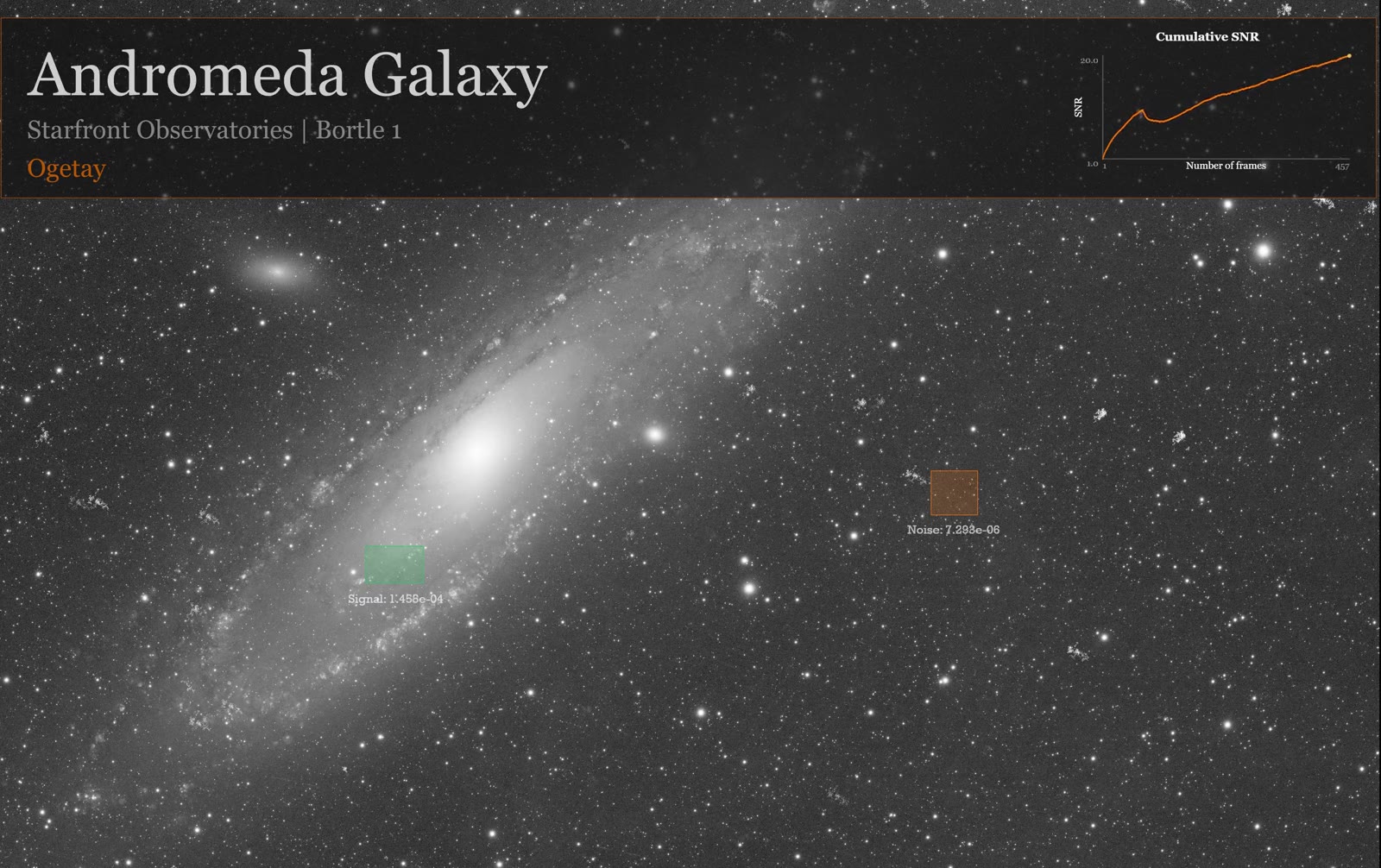
Open a sequence, crop and annotate the first frame, and export a GIF or MP4 in which each frame adds one more exposure to the stack while SNR and integration time update on screen.
What stacking does
Every exposure adds signal.
Stacking averages many exposures of the same target. The target's signal is the same in every frame while random noise averages down, so the signal-to-noise ratio grows roughly with the square root of the number of frames.
Deep Stack shows that happening with your own data, one frame at a time.
Animated
Watch the stack grow.
Each frame of the export adds one more exposure. Live labels and plots track signal, noise, SNR, FWHM, and integration time as the stack deepens.
Crop the field, add text, shapes, and plots, save the layout as a preset, and export a GIF or MP4.
Complete tutorial
From a folder of frames to an exported stack animation.
The steps follow the order you work in: open, frame the image, set up measurements and overlays, then stack and export. Every control, setting, and calculation is described in the Reference part after the steps.
What this mode does
Deep Stack takes a folder of frames of one target and averages them one at a time. Each step of that running average becomes one frame of an animation, so the viewer sees noise fade and faint detail appear as integration time grows. You can put live measurements, plots, and your own labels on top of the animation.
- Folder of frames in, animation out. Frames are read from one folder in filename order. Step 3
- Display control. Stretch, curves, and invert set the look of both the preview and the export. Step 4
- Crop. Limit alignment, measurement, and export to one rectangle of the reference frame. Step 5
- Measurement regions. Choose where signal and background noise are measured. Step 6
- Live values and plots. Show Signal and Noise labels and plot Frame count, Total integration time, FWHM, SNR, Signal, Noise, Moon Illumination, or Moonlight Impact. Step 7
- Annotations and layers. Add circles, rectangles, and text, and reorder or remove layers. Step 8
- Presets. Save a layout with its crop and regions and reuse it on other image sets. Step 9
- WCS alignment. Reproject plate-solved frames onto the first frame, or skip alignment for data that is already registered. Step 10
- GIF and MP4 export. Set frame rate, output size, looping, and Fast mode. Step 11
Before you begin
- Images
- A folder with two or more frames of the same field. Deep Stack reads FITS (
.fit,.fits), XISF, TIFF, PNG, JPG, and common camera RAW files, in grayscale or simple RGB/RGBA. Only files directly in the folder are used; subfolders are ignored. - File order
- Frames are stacked in filename order. Name the files so that this is also time order, and so that the frame you want as the reference sorts first.
- Plate solving
- Needed if CAst should align the frames, and for the Moonlight Impact metric. Every frame then needs a celestial WCS in its header. Deep Stack does not plate-solve frames itself. Frames that are already registered by another program can be stacked without a WCS.
- Header metadata
EXPTIMEgives the integration time.DATE-OBSgives the observation time for the Moon metrics.- Observing site
- Optional. Needed only for Moonlight Impact. Set it in Settings > Open Settings > Setup > Observing Site.
- MP4
- MP4 export needs FFmpeg from the
imageio-ffmpegpackage, which the installer packages are built with. GIF needs nothing extra. - Disk space
- The export writes a temporary folder named
astrostack_export_…inside your image folder, with one aligned FITS copy per frame when CAst aligns. The folder must be writable. The temporary folder is deleted when the export ends.
Step by step
Make a Deep Stack animation
Follow the steps in order the first time. Steps 5 to 9 are optional; you can go from Step 4 straight to Step 10.
Open a folder
- On the mode picker, under Visualizations & Tools, click Deep Stack. If CAst is already open in another mode, choose Mode > Deep Stack instead.
- Click Open in the toolbar. You can also choose File > Open Folder or press Ctrl + Shift + O.
- In Select Deep Stack image folder, choose the folder with your frames and confirm.
CAst lists the supported files in the folder, sorts them by name, and loads the first one. A small Deep Stack dialog shows Loading Deep Stack folder... while it does this. The counter at the right end of the toolbar then reads Frames: N, the number of frames that will be stacked.
The first frame is the reference. It is the image you crop and annotate, and it defines the pixel grid that every other frame is aligned to.
Opening a folder clears the crop, the measurement regions, and all overlay layers. If you have a layout you want to keep, save it as a preset first (Step 9) and load it after opening the new folder.
If the folder has no supported files, the image area reads No supported images were found in the selected folder.
Inspect the reference frame
The panel has three areas: the toolbar across the top, a control column on the left (Plot Properties, Functions, Layers), and the image. A plot card titled Stack SNR is already placed on the image. It shows the SNR curve, an Integration line, and a frame counter such as 1/42.
Move around the image
- Mouse wheel: zoom in or out around the cursor
- Hand tool (the default) + drag: pan
- Display > Reset View: fit the whole image again
Set the display
- Click Display in the toolbar.
- Pick a stretch: Auto Stretch, Linear, Asinh, Sqrt, or Log.
- For finer control, click Curves and adjust the black point, midtone, white point, or curve in the Curves dialog. Click Apply, or Reset to start the curve over.
- Tick Invert if you want dark stars on a light background.
- Click Reset Display to clear curves and return to the default stretch.
The exported animation uses exactly the display you set here, applied to each cumulative stack.
Before you export, the plot card and any live labels show measurements from the first frame only, so the curve is a single point. The full curve is built during export.
Crop the region
Crop when the target fills only part of the frame, or when the frames do not cover exactly the same area.
- Click Crop. The strip under the image reads Drag on the image to select a crop region. Click Crop again to cancel.
- Drag a rectangle around the area you want to keep.
- Release the mouse. The preview now shows only the cropped area, and the button changes to Reset.
To remove the crop, click Reset. To leave crop mode without cropping, click Crop again before you drag.
The crop is used everywhere after this point: as the alignment grid, for every measurement, and as the frame size of the exported animation.
Crop before you place overlays. Layer positions are measured on the displayed image, so changing the crop later moves them relative to the stars.
During alignment, pixels outside a frame's coverage are set to zero, which darkens the edges of the average. Cropping to the area that every frame covers avoids those dark borders.
Set measurement regions
Signal, Noise, and SNR are measured on each cumulative stack. Without regions, CAst uses statistics of the whole (cropped) image. With regions, you choose what counts as signal and what counts as sky.
- In the tool row at the top right, click the Signal tool (the S icon).
- Drag a rectangle over the part of the target you care about, such as a galaxy arm or a bright part of a nebula. It is drawn in green.
- Click the Background tool (the B icon).
- Drag a rectangle over empty sky with no stars. It is drawn in orange.
Both regions appear at the bottom of Layers as Signal region and Background region. Drawing a region again replaces it. To delete one, select it in Layers and click Remove.
CAst uses the regions only when both exist. With only one, it falls back to whole-image statistics. Both regions are drawn on every exported frame as translucent rectangles; remove them before exporting if you do not want them visible.
How these regions turn into numbers is described in R7.
Add live values and plots
Live Signal and Noise labels
- In the Functions group on the left, click Signal (the S icon) or Noise (the N icon).
- Click on the image where the label should go. A label such as
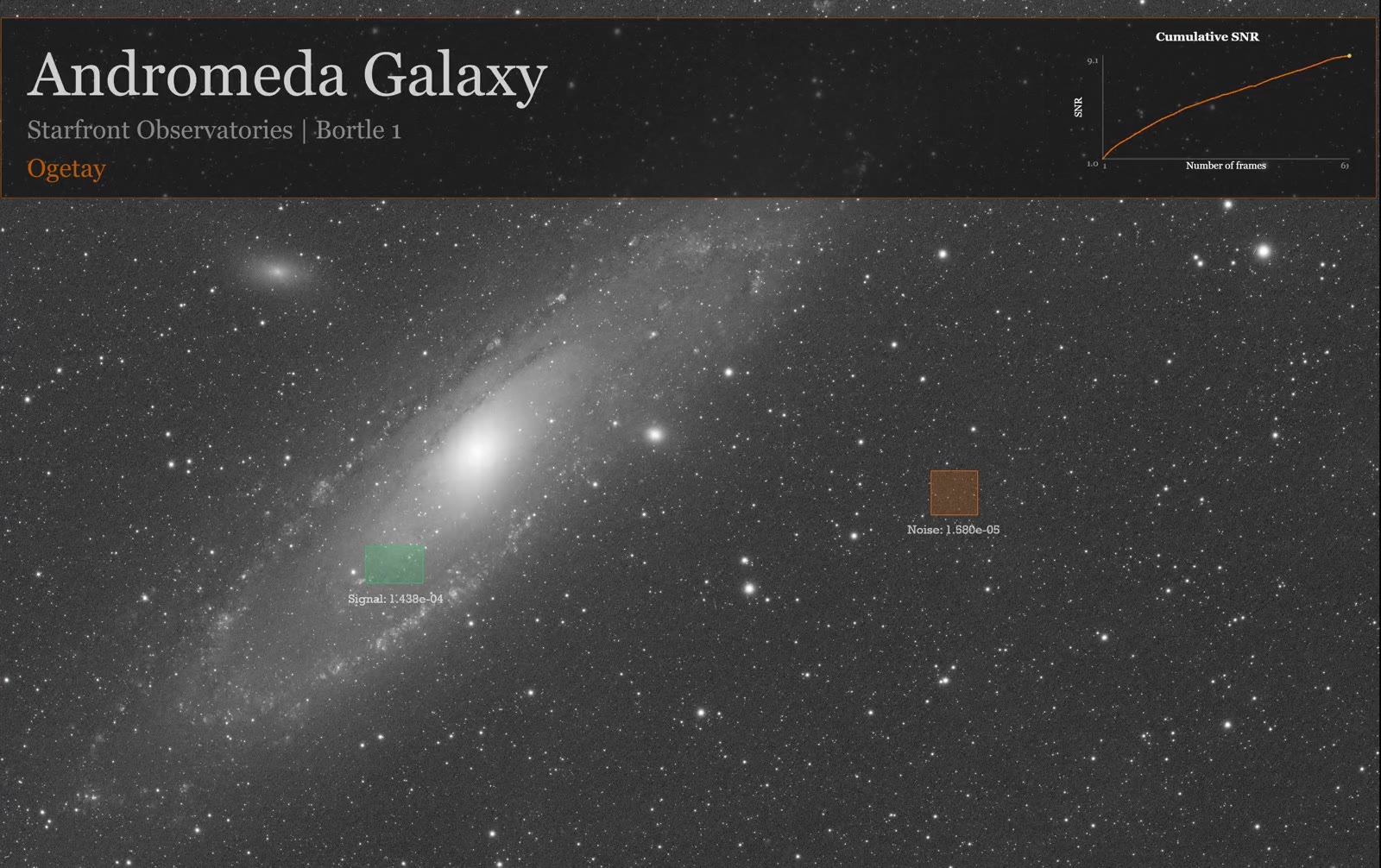
Signal: 1.438e-04appears. - Optionally type a Prefix, and set the text color, font, size, and style in the same group. With a prefix, the label reads
<prefix> <value>.
On export, each label shows the value for the current cumulative stack.
The Stack SNR card
The card that appears when you open a folder plots Frame count against SNR. Below the chart it shows Integration, the total exposure time stacked so far in HHhMMm, and a counter such as 12/42. Click Hide Info at the bottom of the left column to hide this card from the preview and the export; the button then reads Show Info.
Draw your own plot
- Click the Plot tool in the tool row.
- Drag a rectangle where the plot card should go.
- In Plot Properties > Data, type a Title and choose an X metric and a Y metric.
- Optionally type an X label and Y label. Empty labels use the default label for each metric.
- Style the card in the other Plot Properties sections. Every field is listed in R3.
Both axes can use any of these metrics:
| Metric | Default axis label | What it shows |
|---|---|---|
| Frame count | Stacked frames | How many frames are in the stack |
| Total integration time | Integration time (s) | Sum of the exposure times stacked so far |
| FWHM | FWHM (px) | Width of a bright star in the stack |
| SNR | SNR | Signal divided by noise |
| Signal | Signal | Target brightness above the background |
| Noise | Noise | Scatter of the background |
| Moon Illumination | Moon illumination (%) | Lit fraction of the Moon for each frame |
| Moonlight Impact | Moonlight impact score | Estimated scattered moonlight toward the target, 0–100 |
Plots drawn with the Plot tool show the chart only. The Integration line and frame counter belong to the Stack SNR card.
The Moon metrics are context for your data. They do not weight or reject frames. Moonlight Impact needs an observing site and a plate-solved first frame; without them it reads 0 and Low.
Add shapes and text
Use these to mark objects or add a title, an observer name, or equipment details.
Circles and rectangles
- Click the Circle or Rectangle tool. The Properties strip next to the tools shows Stroke, Fill, Weight, and Opacity.
- Set the colors and line weight first if you like.
- For a circle, press at the center and drag out the radius. For a rectangle, drag from one corner to the opposite corner.
A click without a drag creates nothing.
Text
- Click the Text tool. The Properties strip shows the text color, font, size, and style.
- Click on the image where the text should start, without dragging.
- In Add Text Layer, type the text and click OK.
The words of a text layer cannot be changed after it is placed. To change them, remove the layer and add it again. Its color, font, size, and style can be changed.
Select, move, resize, and remove
- Click the Mouse tool.
- Click a layer on the image to select it, or click its name in Layers.
- Drag the layer to move it. Drag a corner handle to resize a rectangle or plot card, or the edge handle to resize a circle.
- Change any property in Properties, Functions, or Plot Properties; the selected layer updates immediately.
- To delete it, right-click it and choose Remove Layer, or click Remove under Layers.
In Layers, the top item is drawn in front. Up moves the selected layer toward the front and Down toward the back.
Save and load presets
A preset stores all overlay layers and their styles, the crop, and the signal and background regions. Positions are stored as fractions of the image, so a preset made on one image set fits another of a different size.
Save
- Under Layers, click Save Preset.
- Choose a name and folder. The default is
astrostack-layers.astrostack.jsonin the image folder.
Load
- Open the image folder first (Step 3).
- Under Layers, click Load Preset and choose the file.
- If the session already has layers or a crop, confirm Replace the current overlay layers and crop with the preset? with Yes.
Presets do not store the display settings or the export options.
Stack and align
- Click Stack in the toolbar.
- The Deep Stack Alignment dialog asks Is this an already aligned dataset? Choose one of the answers below.
No: align first
The default. CAst reprojects every frame onto the first frame's sky coordinates, then stacks. Every frame must be plate-solved. Use this for frames straight from the camera or from a calibration step that kept the WCS.
Yes: already aligned
CAst stacks the frames as they are. If you set a crop, the same pixel rectangle is cut from each frame. No WCS is needed, but every frame must have the same pixel size. Use this for frames that another program has already registered.
Cancel stops without exporting. After you answer, the Deep Stack Export dialog opens (Step 11).
Alignment and stacking happen after you confirm the export file, with progress shown in a Deep Stack dialog. The method is described in R6.
Export and play back
- In Deep Stack Export, leave Fast mode on for a first try. It writes up to 60 evenly spaced frames instead of one per stack.
- Choose the Format: GIF or MP4.
- Set the speed with Frame Rate or Frame Time. They are linked: 50 ms per frame is 20 fps.
- Set Output size, from 10% to 100% of the stacked frame.
- For GIF, keep Loop forever ticked under Playback to repeat the animation, or untick it to play once.
- Check the summary line, which gives the number of animation frames and the length of one pass in seconds. Click Export.
- In Export Deep Stack Animation, choose where to save. The default is
<folder name>_astrostack.gifor.mp4in the image folder.
A Deep Stack progress dialog shows each phase: alignment ([Align 3/42] ...), then stacking (Building cumulative Deep Stack 12/42..., or in Fast mode Accumulating Deep Stack 12/42 (exporting 5/60 GIF frames)...). Click Cancel at any time to stop. When the export finishes, the status bar names the file.
Play back the result
Deep Stack does not play the animation inside CAst. Open the exported file in a web browser, an image viewer, or a video player. A GIF with Loop forever repeats on its own. An MP4 plays once unless the player is set to loop.
Make the final version
If the Fast mode result looks right, click Stack again and export with Fast mode off. Every cumulative stack then becomes one animation frame and every plot gets one point per frame. For long sequences, MP4 gives a smaller file than GIF.
After the export, the preview returns to first-frame values. The full curves exist only in the exported file.
Reference
Controls, settings, and calculations
Look things up here after you know the workflow.
Toolbar and display
- Open
- Opens a folder of frames. Same as File > Open Folder (Ctrl + Shift + O).
- Stack
- Starts the alignment question, the export dialog, and the export. Enabled once a folder with frames is open.
- Crop / Reset
- Crop enters crop mode; click it again to cancel. After a crop is drawn the button reads Reset and clears the crop.
- Display
- Menu with the stretch list, Curves, Invert, Reset View, and Reset Display. Enabled once an image is loaded.
The initial stretch and invert come from Settings > Open Settings > General > Image Display.
- Stretch
- Auto Stretch, Linear, Asinh, Sqrt, Log.
- Curves
- Opens the Curves dialog for black point, midtone, white point, and curve points. Changes the display only, not the data that is measured.
- Invert
- Inverts the display.
- Reset View
- Fits the image in the view.
- Reset Display
- Clears levels and curves and restores the default stretch and invert.
- Frames: N
- Number of supported frames found in the folder.
- Hide Info / Show Info
- At the bottom of the left column. Hides or shows the Stack SNR card in the preview and the export.
Overlay tools and layers
| Tool | Tooltip | Action on the image |
|---|---|---|
| Hand | Drag to pan the image. | Drag to pan. Default tool. |
| Mouse | Select and move overlay layers. | Click to select, drag to move, drag handles to resize, right-click for Remove Layer. |
| Circle | Draw circular overlay layers. | Press at the center, drag the radius. |
| Rectangle | Draw rectangular overlay layers. | Drag corner to corner. |
| Text | Place text overlay layers. | Click to open Add Text Layer. |
| Plot | Draw plot overlay layers with stack metrics. | Drag the plot card. |
| Signal (S) | Draw the signal measurement region for SNR. | Drag the green signal region. |
| Background (B) | Draw the background measurement region for SNR. | Drag the orange background region. |
- Properties
- The strip next to the tools. With Circle or Rectangle active: Stroke, Fill, Weight, Opacity. With Text active: text color, font, size, style. With other tools it reads Select a drawing tool to edit overlay properties.
Weight 0.5–12 px. Opacity 5–100%, set with the slider under the percentage button or by dragging left and right on the Opacity label. Text size 6–120 pt. Styles: Regular, Bold, Italic, Bold Italic.
- Functions
- Signal (Place a live Signal value label on the export.) and Noise (Place a live Noise value label on the export.). When a label tool is active or a label is selected: Prefix, text color, font, size (6–120 pt), style.
- Layers
- All overlay layers, front to back, followed by Signal region and Background region. Selecting an entry loads its settings into the property controls.
- Up / Down
- Move the selected layer toward the front or the back. Not available for measurement regions.
- Remove
- Removes the selected layer or measurement region.
- Save Preset / Load Preset
- File filter:
Deep Stack Preset (*.astrostack.json);;JSON Files (*.json). Save Preset is enabled when at least one layer or region exists. Both need an open folder.
Plot Properties
These fields edit the selected plot card and set the starting values for the next plot you draw. Fields that show Auto at 0 let CAst size the element from the card.
- Data
- Title, X metric, Y metric, X label, Y label. The metric list is in Step 7.
- Card
- Stroke and Fill colors, Weight (0.5–12 px), Radius (corner radius, 0–48 px), Opacity (background opacity of the card).
- Text · Title
- Horizontal (Left, Center, Right), Vertical (Top, Middle, Bottom), Offset X and Offset Y (−80 to 80 px), Color, Font, Style, Size, Opacity (0–1).
- Text · Labels
- Color, Font, Style, Size, Opacity, Accent (color of the Integration label on the Stack SNR card), and X and Y offsets for the X label and the Y label.
- Plot area
- Left, Right, Top, Bottom margins, 0–50% of the card.
- Chart
- Curve color, Opacity (0–1), Width (0–12 px). Highlight color for the current point, Opacity, Radius (0–24 px).
Export options
| Field | Range | Default |
|---|---|---|
| Processing: Fast mode | on / off | on |
| Format | GIF, MP4 | GIF |
| Frame Rate | 0.2–50 fps | 20 fps |
| Frame Time | 20–5000 ms | 50 ms |
| Output size | 10–100% | 100% |
| Playback: Loop forever | on / off, GIF only | on |
- Fast mode
- Writes at most 60 evenly spaced animation frames, always including the first and last stack. All frames are still aligned and stacked; metrics are measured only on the written frames. Off: one animation frame and one measurement per cumulative stack.
- GIF
- One 256-color palette built from the first, middle, and last frames, with dithering. All frames are held in memory until the file is written.
- MP4
- H.264,
yuv420p, quality CRF 23, no audio. The frame is padded to a multiple of 16 pixels by repeating the edge. Needs FFmpeg; without it CAst shows MP4 export unavailable with install steps. - Output size
- Scales the image and all overlays together, so the layout stays the same.
- Output file
- Default
<folder name>_astrostack.gifor.mp4in the image folder. The extension is corrected to match the format.
Related settings
All are in Settings > Open Settings.
- Observing Site
- Setup tab: Observing Latitude, Observing Longitude, Observing Elevation. Latitude and longitude are needed for Moonlight Impact and make Moon Illumination topocentric.
- Image Timestamp Timezone
- Differential Photometry tab, Science Export group. Used to read
DATE-OBSvalues that have no time zone. - Shared Analysis Workers
- Advanced tab. Number of parallel workers for alignment.
Auto by default. Alignment uses at most 2 workers for full reprojection and 4 for the fast affine path unless you set a number.
- Image Display
- General tab. Default stretch and invert for the preview.
- Keep mode memory when switching
- General tab. Off by default. When off, leaving Deep Stack and returning shows the empty preview, and you reopen the folder.
How the stack is built
Alignment (answer No)
- CAst checks that the first frame and every other frame have a usable celestial WCS. A missing one stops the export with the file name and the reason.
- The target grid is the first frame, or the crop of the first frame when a crop exists.
- Each frame is reprojected onto that grid. When the mapping between the two WCS solutions is affine to within 0.08 px, CAst uses a fast affine transform. Otherwise it uses bilinear reprojection with the
reprojectpackage. - CAst then detects up to 96 stars in the reference and in the reprojected frame, finds the most common offset between them, and shifts the frame by that offset when at least three stars agree and the shift is at least 0.05 px.
- Aligned copies are written as FITS files to a temporary folder inside the image folder.
Pixels that a frame does not cover are set to 0.
Already aligned (answer Yes)
The frames are read as they are. If a crop exists, the same pixel rectangle is cut from each.
Running mean
The stack is an unweighted running mean. Frame 1 starts it, and each later frame n updates it as mean += (frame − mean) / n. Every frame has equal weight; there is no outlier rejection.
Rendering
Each written step is displayed with your stretch, curves, and invert settings, then the measurement regions and all visible layers are drawn on top, and the result is scaled to the output size. The temporary folder is deleted at the end, whether the export finished, failed, or was canceled.
How the metrics are computed
Every metric is measured on the current cumulative stack, inside the crop. For color images the channels are averaged into one brightness plane first. MAD is the median absolute deviation; multiplying it by 1.4826 gives a noise estimate that matches the standard deviation for Gaussian noise and ignores stars.
- Noise
- With both regions: 1.4826 × MAD of the background-region pixels. Without both: 1.4826 × MAD of all pixels. If the MAD is zero, the standard deviation is used.
- Signal
- With both regions: mean of the signal-region pixels minus the median of the background-region pixels. Without both: the 99.5th percentile of all pixels minus their median. Never below 0.
- SNR
- Signal divided by Noise. For random noise, averaging n frames lowers the noise by about √n, so SNR tends to rise roughly with √n until gradients or pattern noise limit it.
- FWHM
- CAst takes the brightest pixel in the central part of the image (a margin of one-eighth of the width and height is ignored on each side), cuts a 15 × 15 pixel box around it, subtracts the local background, and finds where the radial profile drops to half its peak. Falls back to 3.0 px if that fails.
- Frame count
- Number of frames in the stack at that step.
- Total integration time
- Sum of the exposure times of the stacked frames, from
EXPTIMEor from the filename. Frames without an exposure add 0. The card shows it asHHhMMm, or--when it is 0; plots use seconds. - Moon Illumination
- The Moon's lit fraction, in percent, at each frame's mid-exposure time (
DATE-OBSplus half the exposure), from the Sun–Moon–observer angle computed with Astropy. - Moonlight Impact
- A 0–100 score from the Krisciunas–Schaefer (1991) scattered-moonlight model. It uses the Moon's altitude and distance, the target's altitude, their separation, and the Moon's phase at the frame time and your site. The target is the center of the first frame's plate solution. CAst estimates the moonlight brightness with V-band extinction of 0.172 mag per airmass, converts it to a brightening of the sky against a dark zenith of 79 nanoLamberts, and scales 4.5 magnitudes of brightening to 100. The score is 0 when the Moon is below the horizon.
| Moonlight Impact score | Category |
|---|---|
| below 20 | Low |
| 20 to below 40 | Moderate |
| 40 to below 65 | High |
| 65 and above | Severe |
When a plot uses Moonlight Impact, the axis label includes the current category, for example Moonlight impact (Moderate). Live Signal and Noise labels use scientific notation with three decimals, such as 1.438e-04.
These numbers are for comparing stacks and showing progress. FWHM comes from one bright peak, so a saturated star or hot pixel can dominate it. Signal and noise are region statistics, not aperture photometry. Check results with dedicated tools before using them in a report.
Troubleshooting
The folder opens but says no supported images were found
Deep Stack reads only files directly inside the chosen folder, not in subfolders. Check that the frames are FITS, XISF, TIFF, PNG, JPG, or camera RAW files and that you chose the folder that contains them.
The export stops with "is not plate-solved"
You answered No, and at least one frame has no usable WCS. Plate-solve every frame, or, if the frames are already registered, click Stack again and answer Yes. Frames written by PixInsight StarAlignment (with an .xdrz file next to them) are treated as unsolved on purpose, because their WCS may not match the warped pixels; answer Yes for those.
The export stops with "Alignment requires at least two solved frames"
Alignment needs two or more frames. Add frames to the folder, or answer Yes to stack a single frame as it is.
"Image alignment requires the 'reproject' package to be installed"
The Python environment running CAst is missing reproject. Install it into that environment, or answer Yes if your frames are already aligned.
The export fails partway through when I answer Yes
The frames have different pixel sizes, so they cannot be averaged as they are. Answer No so CAst aligns them onto one grid, or resample them to one size elsewhere first.
"MP4 export unavailable"
FFmpeg was not found. If you run CAst from source, the message gives the install command for your Python environment (python -m pip install imageio-ffmpeg). In an installed build, the message says the build is missing the FFmpeg runtime. Until then, export as GIF.
The animation has dark borders
The frames do not all cover the same area, and uncovered pixels are set to 0 during alignment. Crop to the region every frame covers (Step 5) and export again.
The plot shows only one point
That is expected before export. The preview measures only the first frame; the full curve is built in the exported file.
The plot has fewer points than I have frames
Fast mode measures only the frames it writes, at most 60. Export with Fast mode off for one point per frame.
Integration shows -- or stays at 0
The frames have no EXPTIME keyword and no exposure in the filename. Add exposure metadata to the files.
Moonlight Impact is always 0 and Low
Set Observing Latitude and Observing Longitude in Settings > Open Settings > Setup, make sure the first frame is plate-solved, and check that the frames have DATE-OBS. It is also 0 whenever the Moon was below the horizon.
Signal and Noise do not use my regions
Both a Signal region and a Background region must exist. Check that both appear in Layers.
My overlays moved after I cropped
Layer positions are measured on the displayed image, which changes when you crop. Move them back with the Mouse tool, and set the crop before adding overlays next time.
My overlays disappeared when I opened another folder
Opening a folder clears layers, regions, and the crop. Save a preset before opening a new folder and load it afterwards (Step 9).
Save Preset or Load Preset says to open a Deep Stack image folder
Presets store positions relative to the image, so a folder must be open. Open the folder, then save or load the preset.
A long full-size GIF export is slow or uses a lot of memory
GIF frames are kept in memory until the file is written. Use Fast mode, lower the Output size, or export as MP4.
The preview is empty after I switched modes and came back
By default, leaving a mode clears its preview. Click Open and choose the folder again, or turn on Keep mode memory when switching in Settings > Open Settings > General.